Conferfly Admin Portal
Manage every Conferfly account and room in your organization from one place: live room status, licenses, room templates and a full audit log.

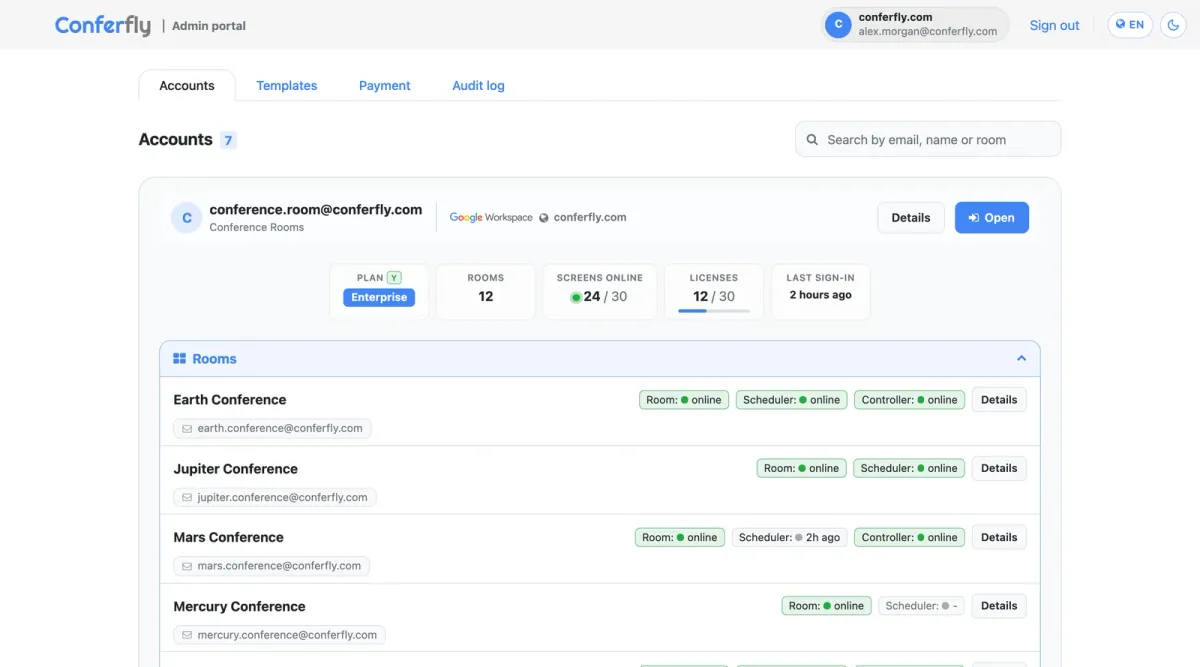
The Conferfly Admin Portal is one place for IT to see and manage every Conferfly account and room in your company. It covers all the accounts in your Google Workspace or Microsoft 365 organization, whoever created them. From the portal you can check each room's screens in real time, open any account to change its settings, buy licenses and assign them to accounts, see who changed what, and with Room Templates set up a group of rooms once and apply it to all of them in a few seconds.
Open it at admin.conferfly.com, or at conferfly.com/admin.
Plans: The Admin Portal is included in both the Business and Enterprise plans. Room Templates are available on Enterprise only.
What You Can Do in the Admin Portal
- Accounts: every Conferfly account in your organization, with its plan, rooms, licenses and last sign-in.
- Live room status: which room displays and tablets are online right now, and when each one was last seen.
- Account and room details: each account's and room's settings at a glance, and what the Conferfly app on the room computer reports.
- Open any account: change its rooms and settings as if you were signed in to it.
- Payment: buy room licenses for the whole organization and assign them to the accounts that need them.
- Templates: set room and account settings once, lock the ones you control, and apply them to all your rooms (Enterprise).
- Audit log: every account opened and every change made, by which admin and when, with CSV export.
Who Can Sign In
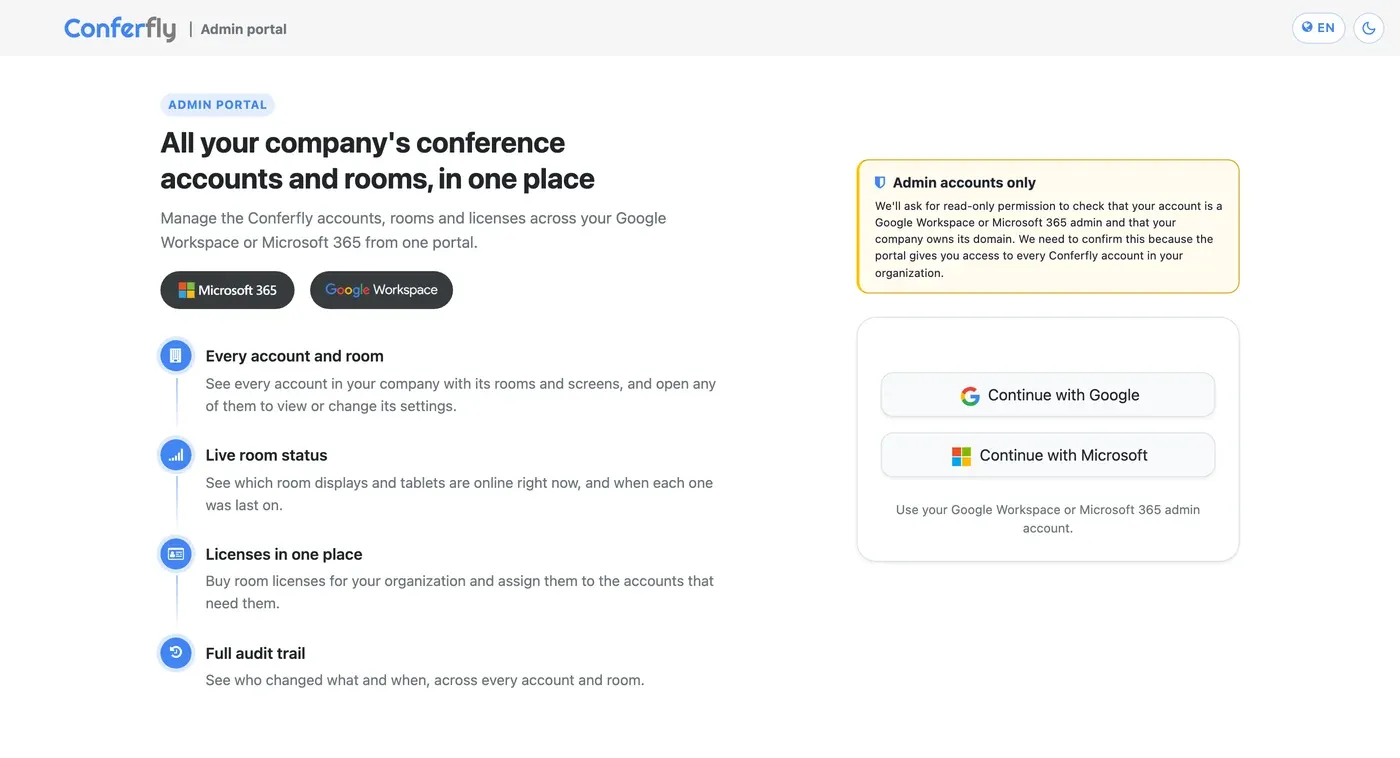
The portal is for your organization's administrators only. There are no separate portal passwords or invitations to manage: Conferfly checks with Google or Microsoft that the person signing in is an admin of your organization.
- Go to admin.conferfly.com.
- Click Continue with Google or Continue with Microsoft and sign in with your work admin account.
- Conferfly asks for read-only permission to confirm that your account is an admin and that your company owns its domain. Nothing else is read.
Which admin accounts are allowed
- Google Workspace: super admins, and delegated admins (such as help desk or system admins) whose admin role can read users.
- Microsoft 365: accounts with one of these roles, held directly or through a group: Global Administrator, Helpdesk Administrator, User Administrator, Exchange Administrator, Exchange Recipient Administrator, Intune Administrator, Teams Administrator, Teams Devices Administrator or Teams Communications Administrator. Reader roles can't sign in.
- Personal accounts (gmail.com, outlook.com) can't sign in, and an account that isn't an admin is turned away with its name shown, so it's clear which account was used.
Several admins, one portal
Every admin of your organization who signs in sees the same portal: the same accounts, rooms, licenses and templates. So your IT team, help desk and AV team can all manage rooms and accounts together, without sharing one login. Each admin's actions are logged under their own name in the Audit log.
To give someone access, give them one of the admin roles above in Google Workspace or Microsoft 365. To remove it, take the role away: they can't sign in to the portal again.
Security: A portal session stays signed in while it is in use and ends after 12 hours without activity (and after 7 days at most). For Google Workspace, your domain is tied to the Google Workspace that first signed in to the portal, so a different Workspace set up later with the same domain can't see your accounts.
Accounts: Every Account and Room in One Place
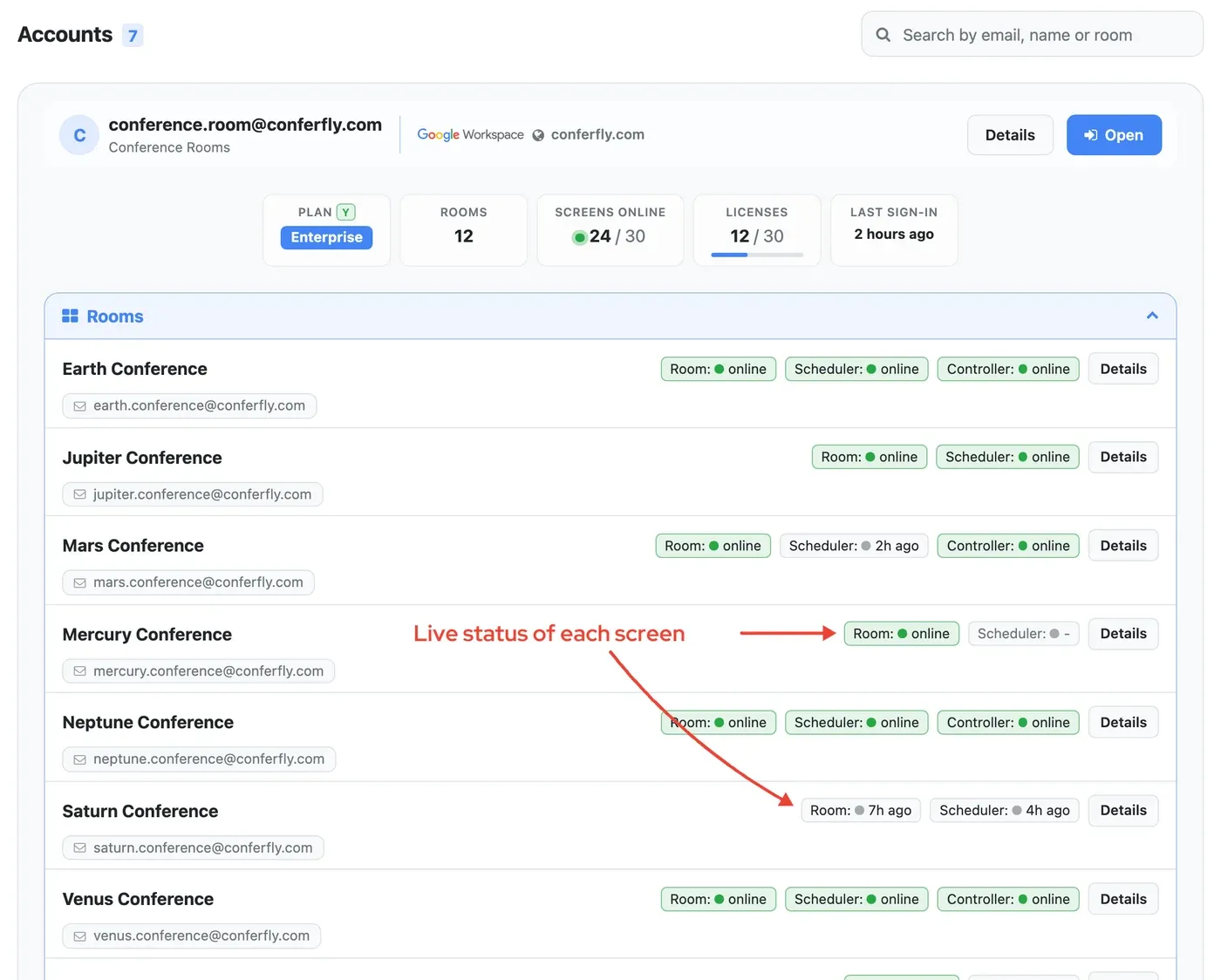
The Accounts tab lists every active Conferfly account in your organization. Search by email, name or room name to find one quickly. Each account card shows:
- Plan: Enterprise, Business or Trial. A small Y or M shows whether it is billed yearly or monthly (green while the subscription is active). A trial's plan turns red once it has expired, and its days left show on hover.
- Rooms: how many rooms the account has.
- Screens online: how many of its room displays and tablets are on right now, out of all of them.
- Licenses: licenses in use out of those it has, with a bar that turns amber when nearly all are used and red when none are left.
- Last sign-in, and its platform (Google Workspace or Microsoft 365) and domain.
- Booking not authorized: a warning under the name when the account's rooms can't book meetings yet because booking hasn't been authorized in its room settings.
Live room status
Open the Rooms bar on a card to see each room with its calendar email and the status of each of its screens:
- Room: the display in the room.
- Scheduler: the tablet outside the door.
- Controller: the tablet that controls the room display (shown when the Tablet Controller is turned on).
A green online means the screen is connected right now. Otherwise you see when it was last seen (for example 7h ago), or a grey dash if it has never connected. This makes it easy to spot a display that was switched off or lost its network before anyone books the room.
Account details
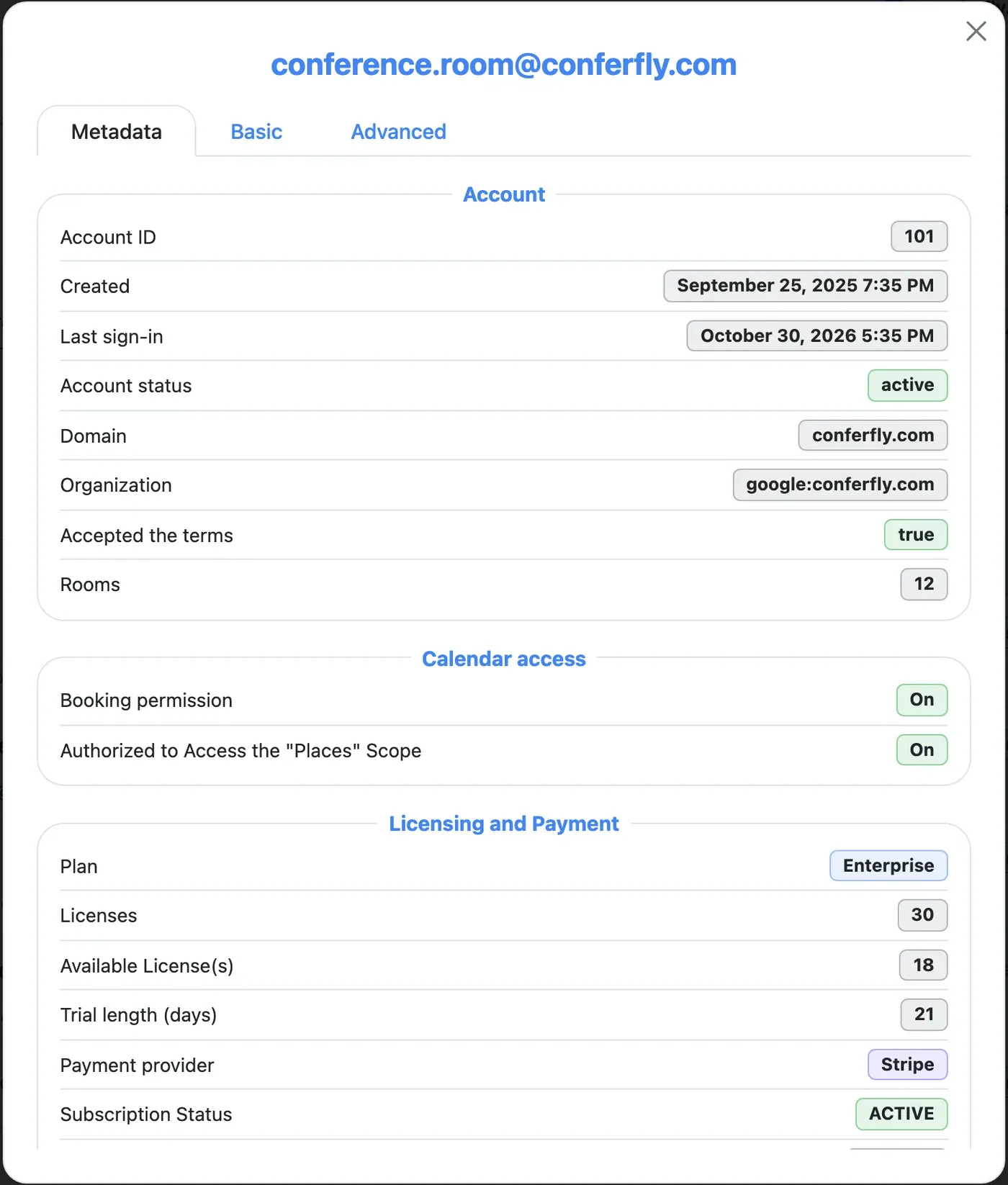
Click Details on an account to see its settings without changing anything:
- Metadata: account ID, created date, last sign-in, status, domain and organization, whether booking and the "Places" scope are authorized, and its licensing and payment (plan, licenses, available licenses, subscription status, term, price and next billing date).
- Basic: language, appearance, background images and how long it stays signed in.
- Advanced: screen sharing (Local Network Screen Sharing and whitelisted IPs), whether a room lock PIN is set, theme colors and fonts, external devices, whether API access is on (with the last 4 characters of the key) and the custom platform.
Sensitive values are never shown here: not the account's Google or Microsoft tokens, not the PIN itself, and not the full API key.
Room details
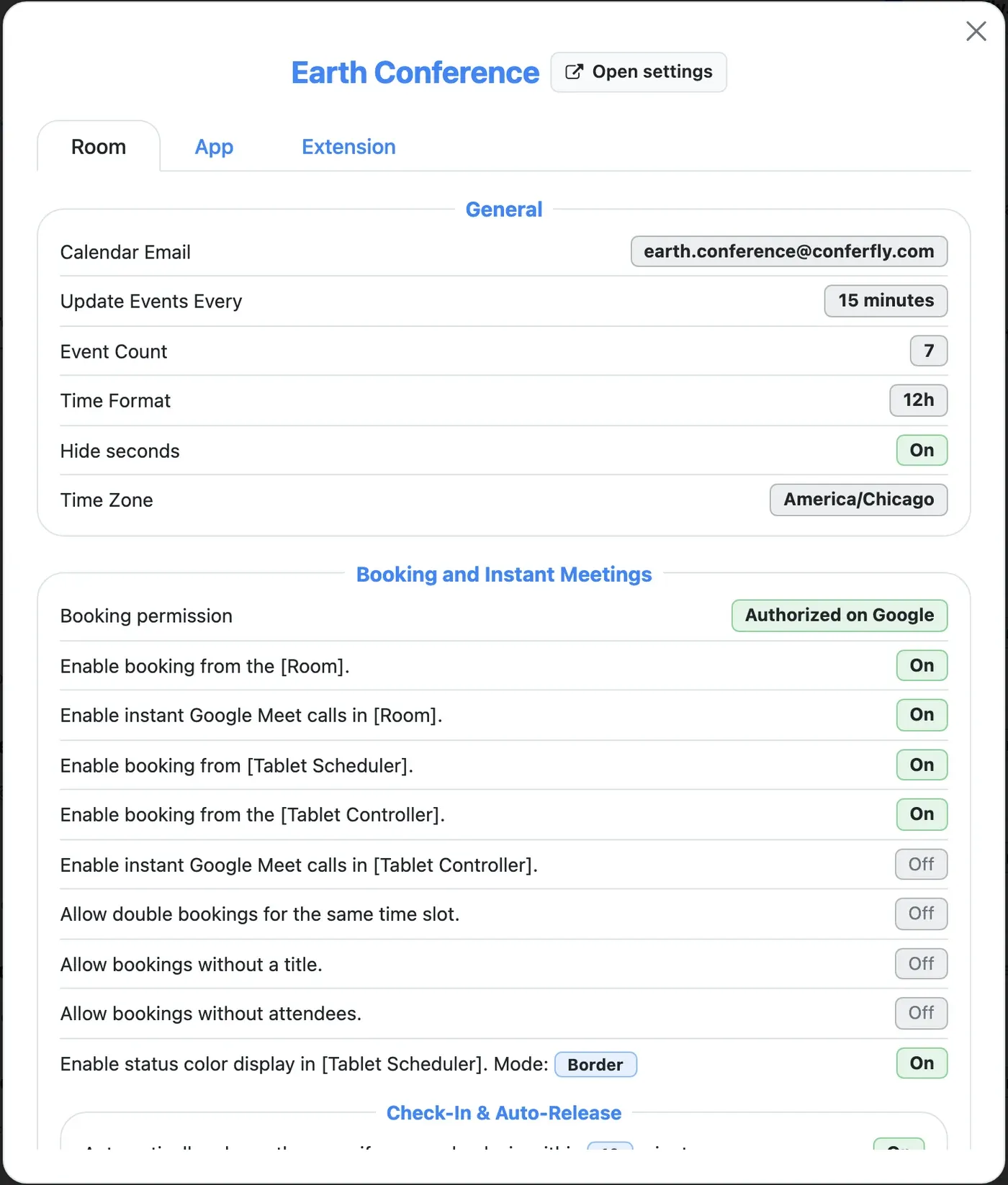
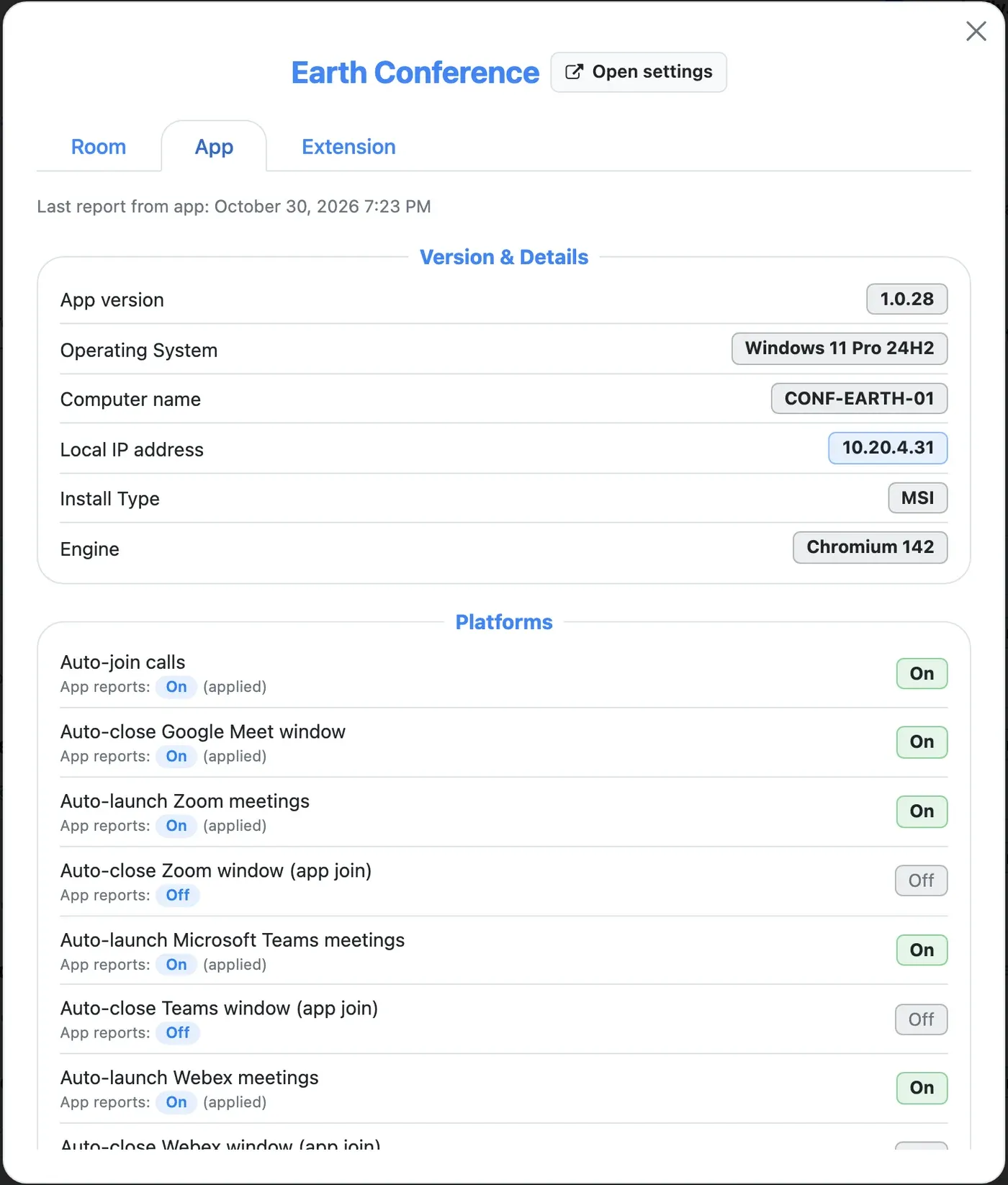
Click Details next to a room to see all of its settings in three tabs:
- Room: every room setting, grouped as on the room's settings page: update interval, time zone, booking and instant meetings, check-in and auto-release, tablets, screen sharing, background images, meeting tools, security, notifications, additional buttons and Room Status API hooks.
- App: what the Conferfly app on the room computer last reported: app version, operating system, computer name, local IP address, install type, and each app option, with whether it matches what you enforced.
- Extension: the same for the Conferfly Chrome extension.
Click Open settings to go straight to that room's settings page in the account.
Open an account
Click Open to open the account in a new window, signed in as that account. You see its rooms and settings exactly as the account does and can change anything: add or edit rooms, authorize booking, change backgrounds and more. Your own Conferfly session is not affected, and only one account is open at a time.
Every account you open and every change you make there is logged under your name in the Audit log.
Tip: If nothing opens, allow pop-ups for admin.conferfly.com in your browser and click Open again.
Payment: Licenses for the Whole Organization
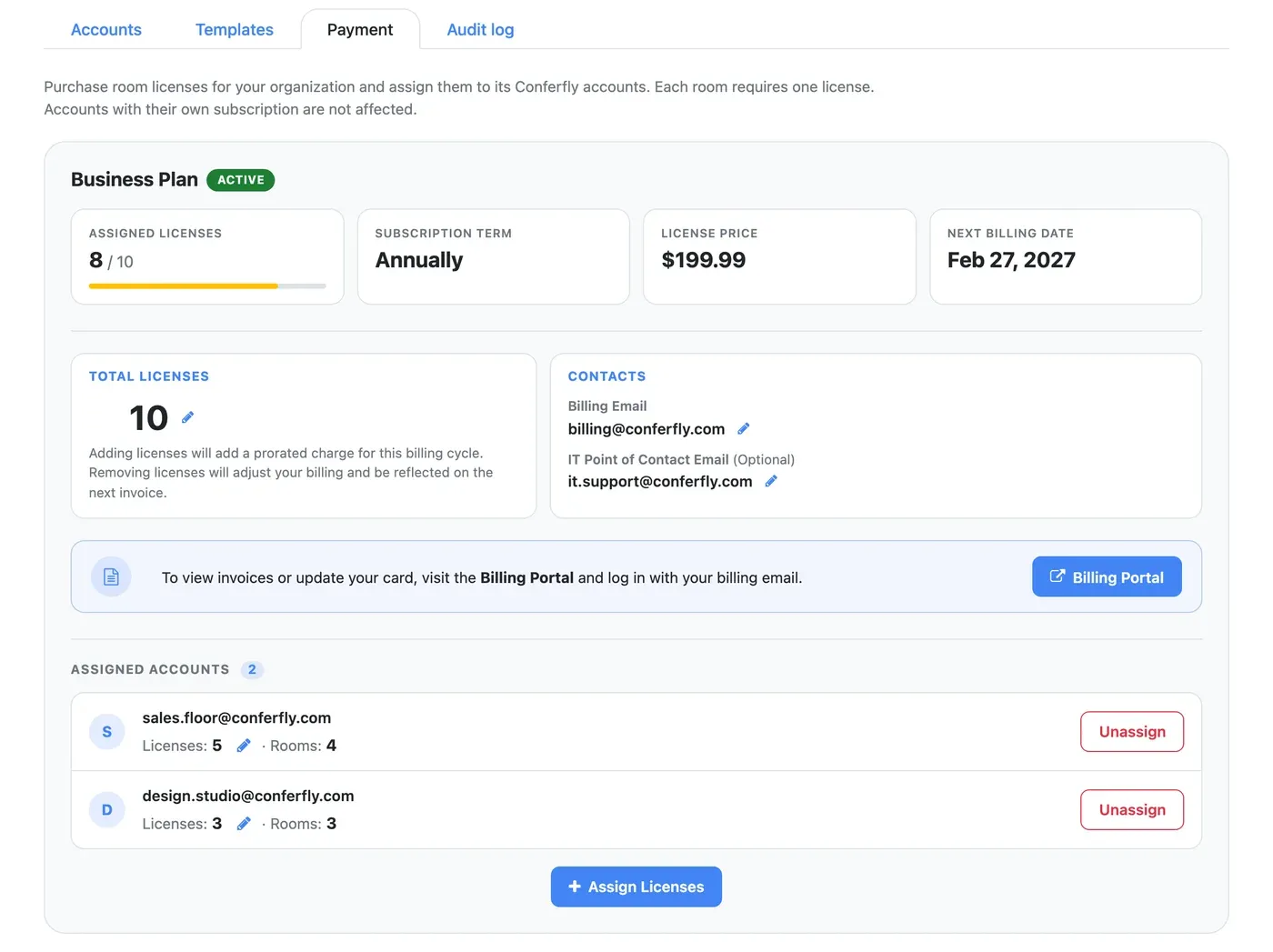
On the Payment tab you buy room licenses once for your organization and give them to the accounts that need them. Each room requires one license. Accounts that pay for their own subscription are not affected.
Buy a subscription
- Go to the Payment tab.
- Choose Business or Enterprise, monthly or annual billing, and the number of licenses.
- Enter the billing email and, optionally, an IT point of contact email (the person Conferfly contacts about technical matters).
- Pay with Stripe Checkout. You come back to the Payment tab, ready to assign the licenses.
You can also start from the Conferfly app: in Settings > Payment, when asked Who are these licenses for?, choose My whole organization to open the Admin Portal.
Manage the subscription
Each subscription shows its status, assigned licenses out of the total, term, price per license and next billing date. From there you can:
- Change the total licenses with the pencil icon. Adding licenses adds a prorated charge for the current billing period; removing them is reflected on the next invoice.
- Edit the billing email and IT point of contact.
- Upgrade to Enterprise from a Business subscription. Its accounts move to Enterprise with it.
- Open the Billing Portal to see invoices or update the card.
Assign licenses to accounts
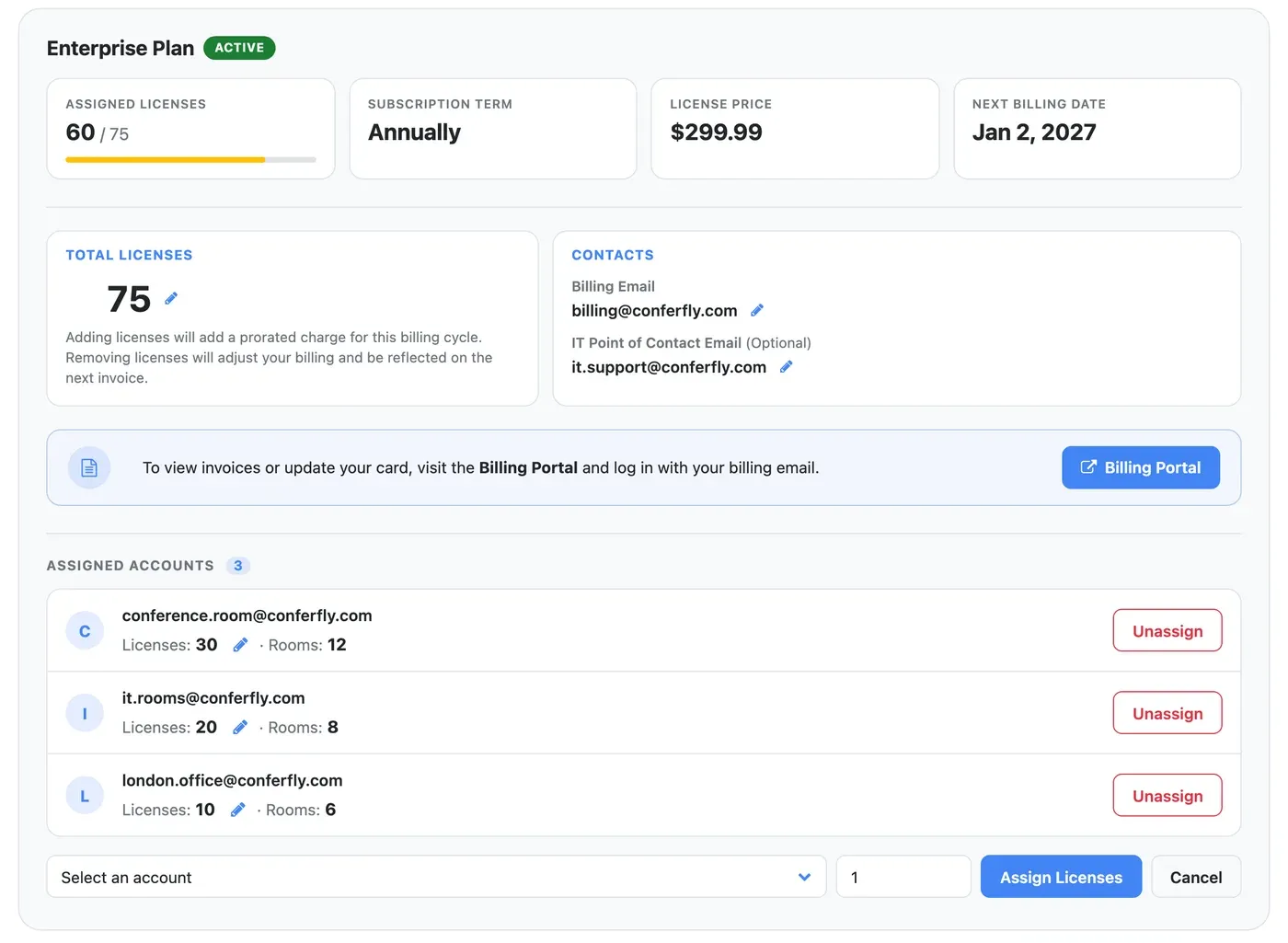
- Under the subscription, click Assign Licenses.
- Select an account and enter how many licenses it gets (one per room).
- Click Assign Licenses. The account is upgraded right away, and its Payment page says its licenses are managed by your organization.
- Change an account's license count with the pencil next to Licenses.
- Unassign takes the licenses back. The account returns to its trial, which may have already expired.
- If an account already has licenses of its own, the portal warns you before your organization's licenses replace them. An account paying for its own active subscription can't be assigned licenses.
Templates: Set Up All Your Rooms in Seconds
With dozens or hundreds of rooms, changing one setting room by room takes hours. A template holds room and account settings that you set once in the portal and apply to as many accounts and rooms as you want. Every room on the template follows it straight away, and any change you make to the template reaches all of them at once.
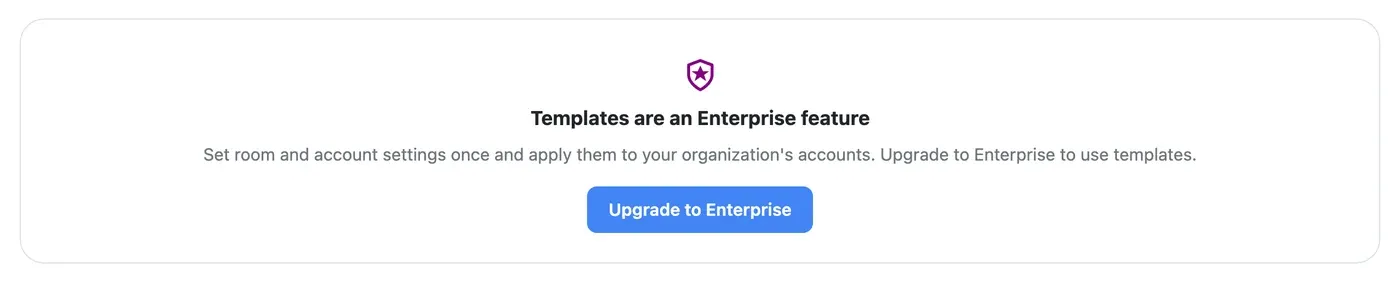
Note: Templates are an Enterprise feature. They work while your organization has an active Enterprise subscription in the Admin Portal, and they apply to accounts with an Enterprise license.
Create a template
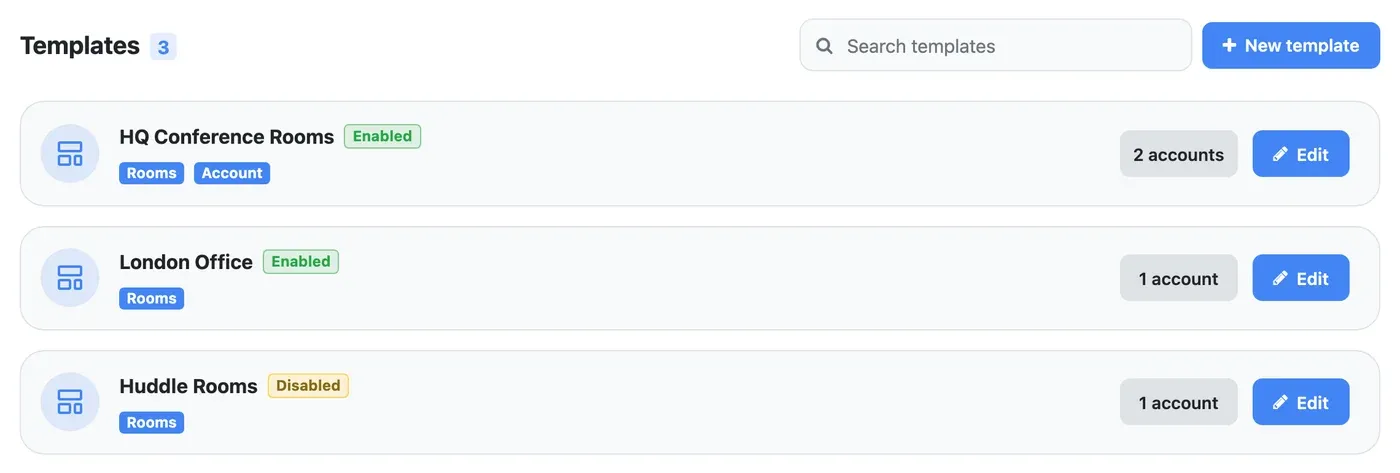
- Go to the Templates tab and click New template.
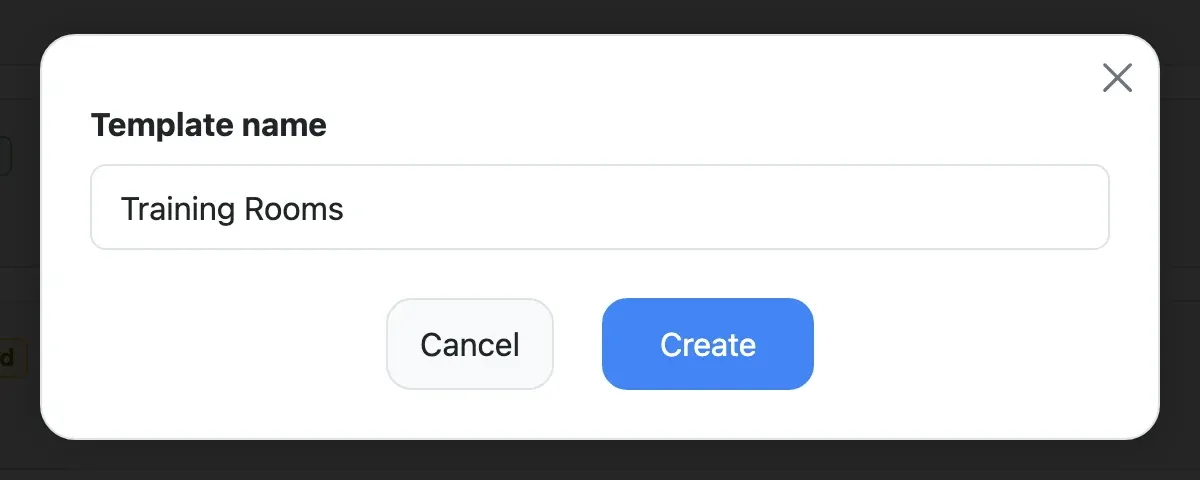
- Give it a name, for example HQ Conference Rooms or London Office, and click Create.
The list shows each template with the sections it sets (Rooms, Account), whether it is Enabled or Disabled, and how many accounts use it. Click a template to edit it.
The Rooms section
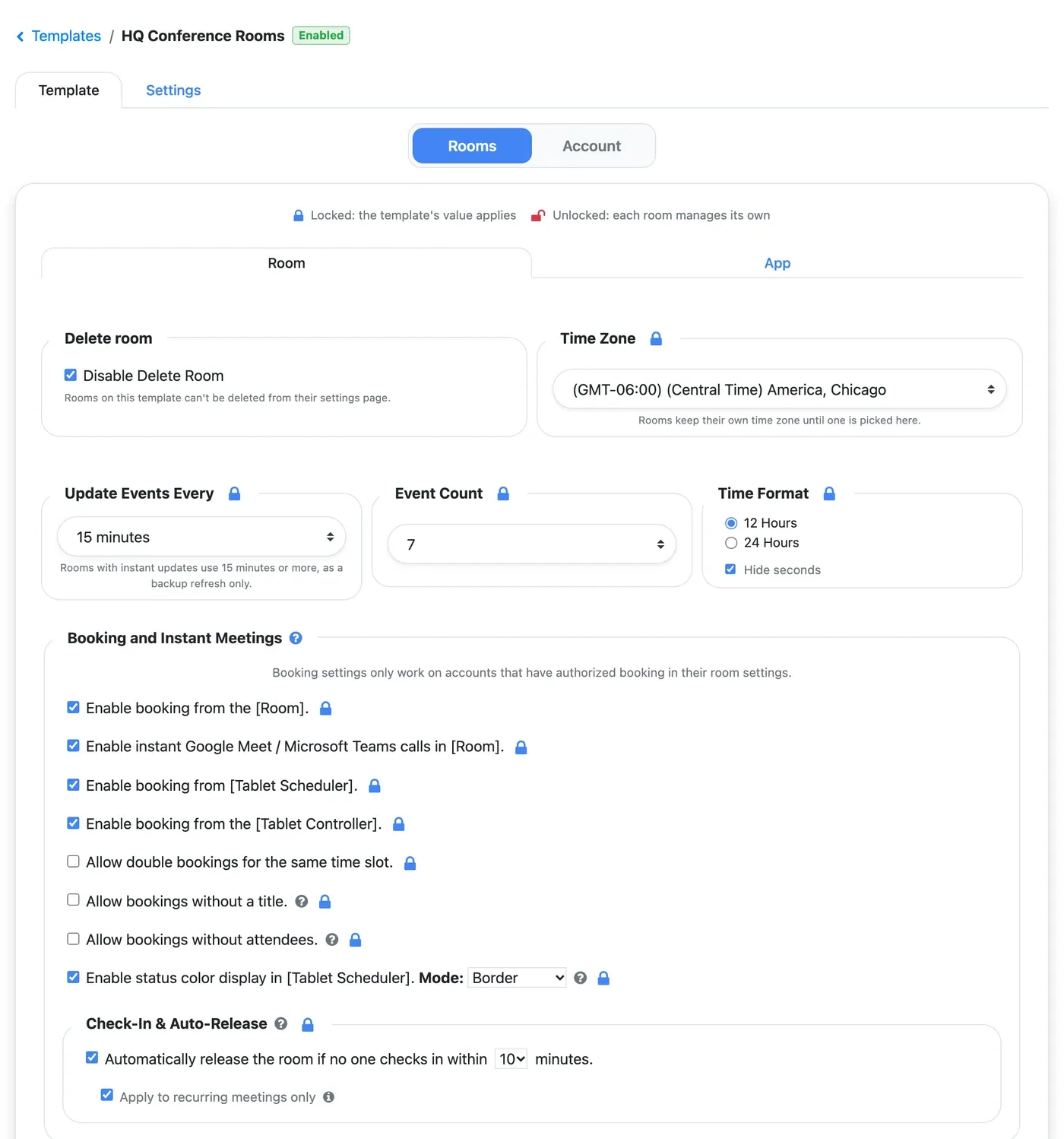
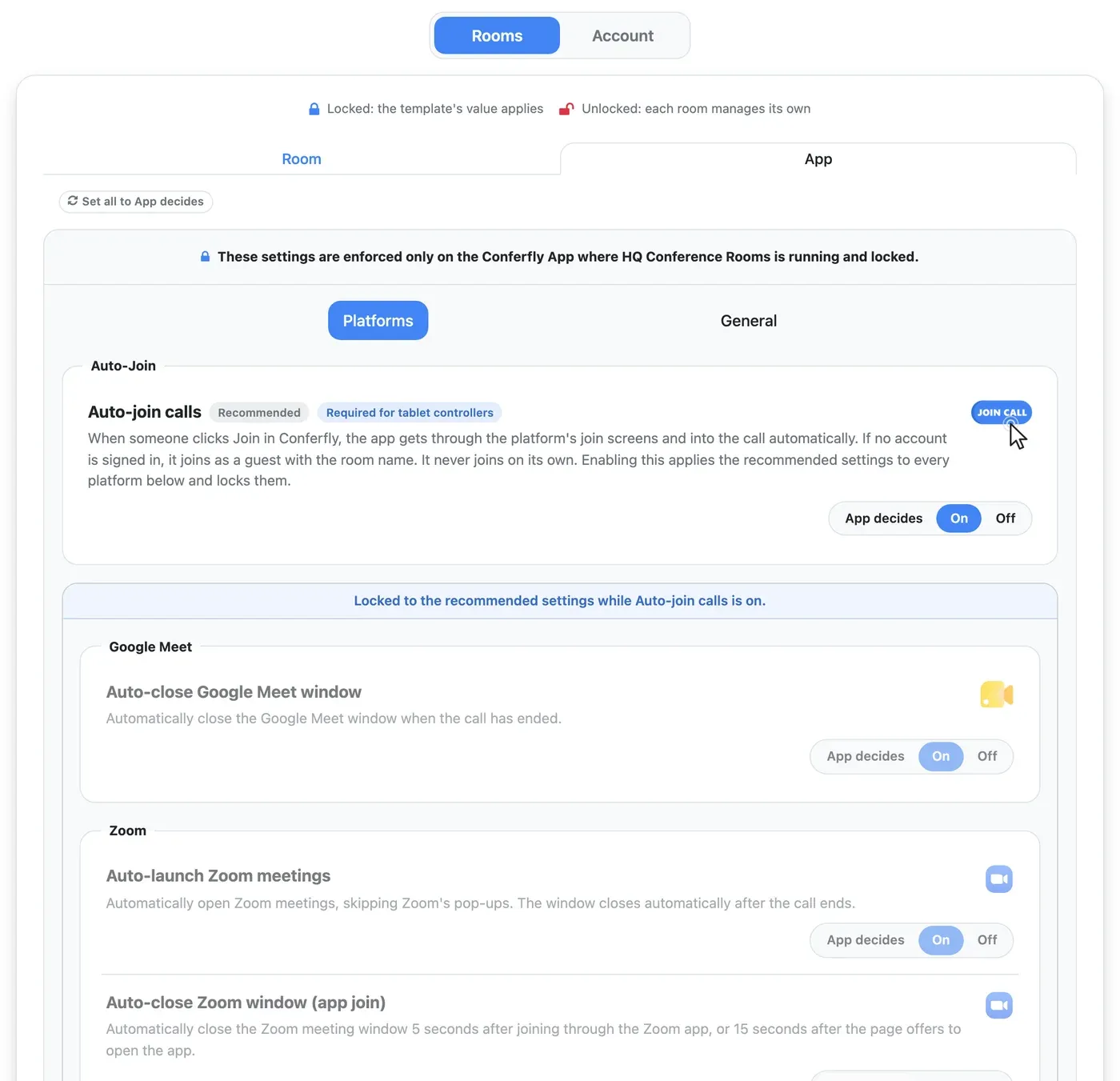
A template's Rooms section uses the same settings page as a room, so there is nothing new to learn. It covers:
- Room: time zone, time format, update interval and event count, booking and instant meetings, check-in and auto-release, Tablet Controller, screen sharing, whiteboard, Chrome Incognito browsing, background images (room display, scheduler and controller, static or carousel), room message, meeting tools (join Google Meet, Zoom, Teams, RingCentral, Lark, GoTo and Dialpad by code), security and privacy options, and room notifications.
- App: the Conferfly app options to enforce on the room computers, such as auto-join calls, auto-closing meeting windows, kiosk mode on startup, keeping the computer awake and the daily reset. Each option can be App decides, On or Off.
- Extension: the same for rooms that run the Conferfly Chrome extension.
- Delete room: rooms on a template can't be deleted from their own settings page (on by default), so a room isn't removed by mistake.
Room Name, Additional Buttons and Room Status API Hooks always stay each room's own.
The Account section
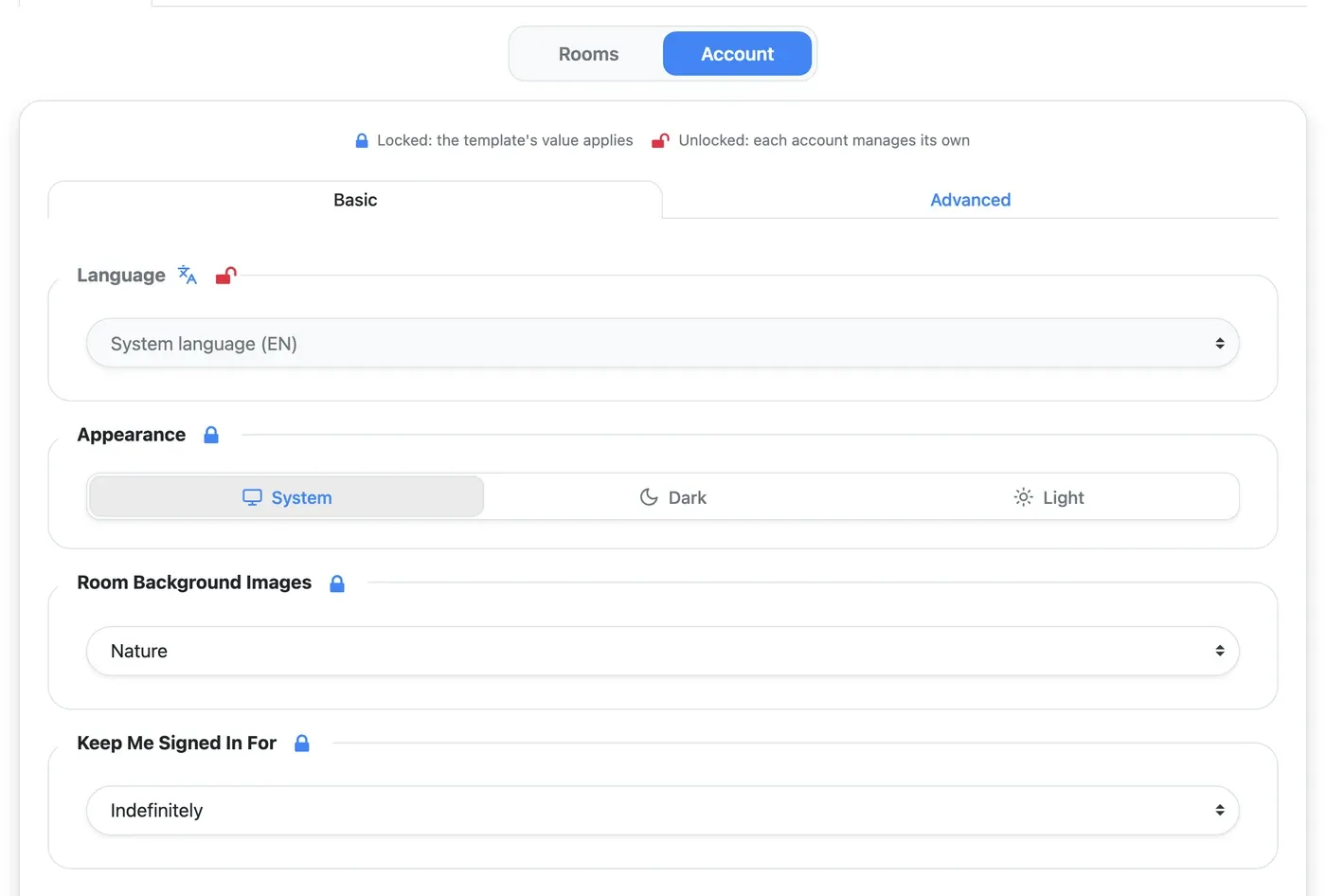
Turn on the Account section to also set the accounts' own settings:
- Basic: language, appearance, room background image theme, and how long the account stays signed in.
- Advanced: screen sharing (Local Network Screen Sharing and whitelisted public IPs), room lock PIN, theme colors, main and clock fonts (including uploaded fonts), and a custom meeting platform.
The Account section applies to accounts that are on the template with All rooms. External devices and API access always stay each account's own.
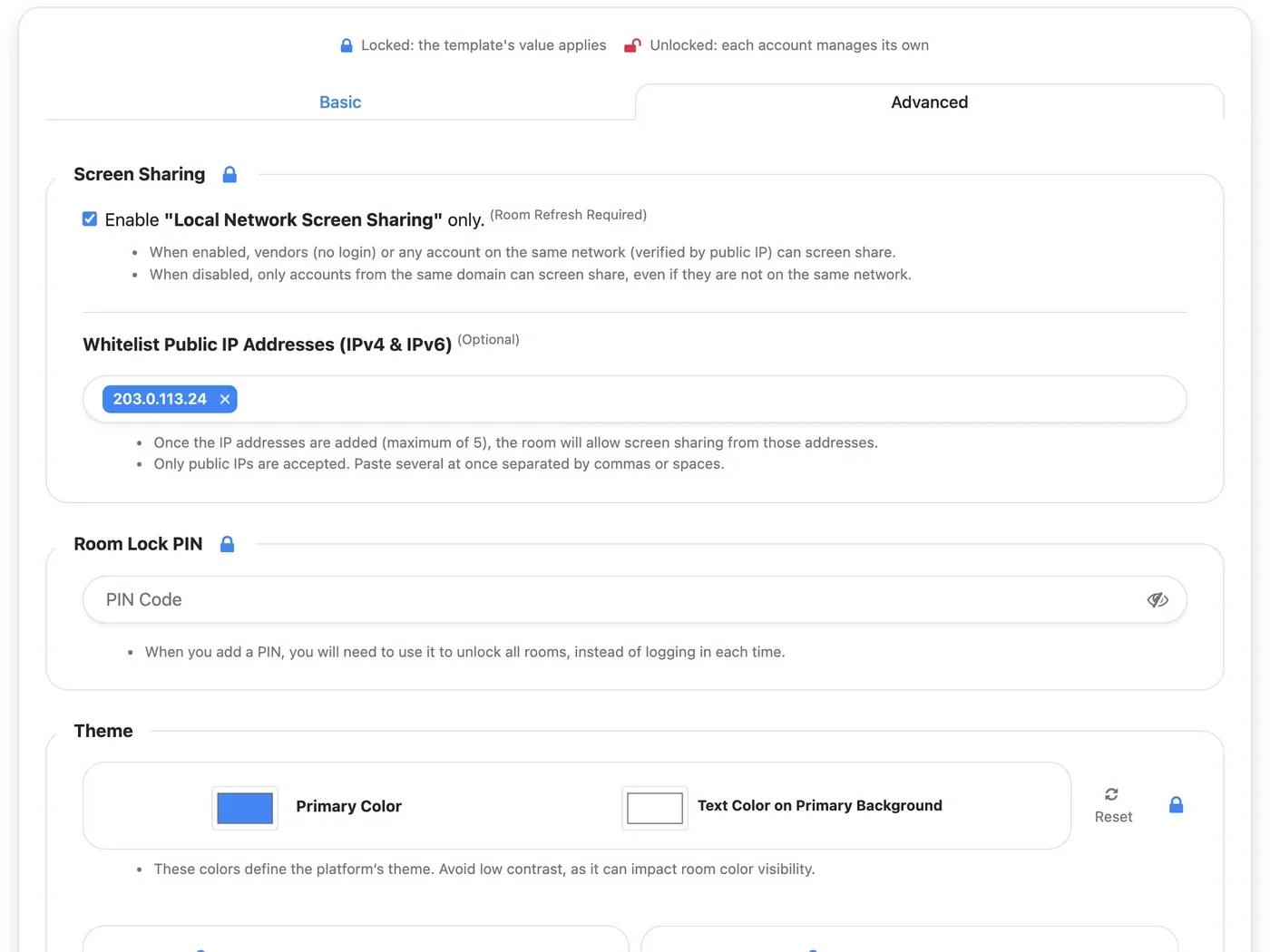
Lock what you manage, unlock what each room manages
Every setting in a template has a lock:
- Locked (blue lock): the template's value applies, and rooms and accounts can't change it.
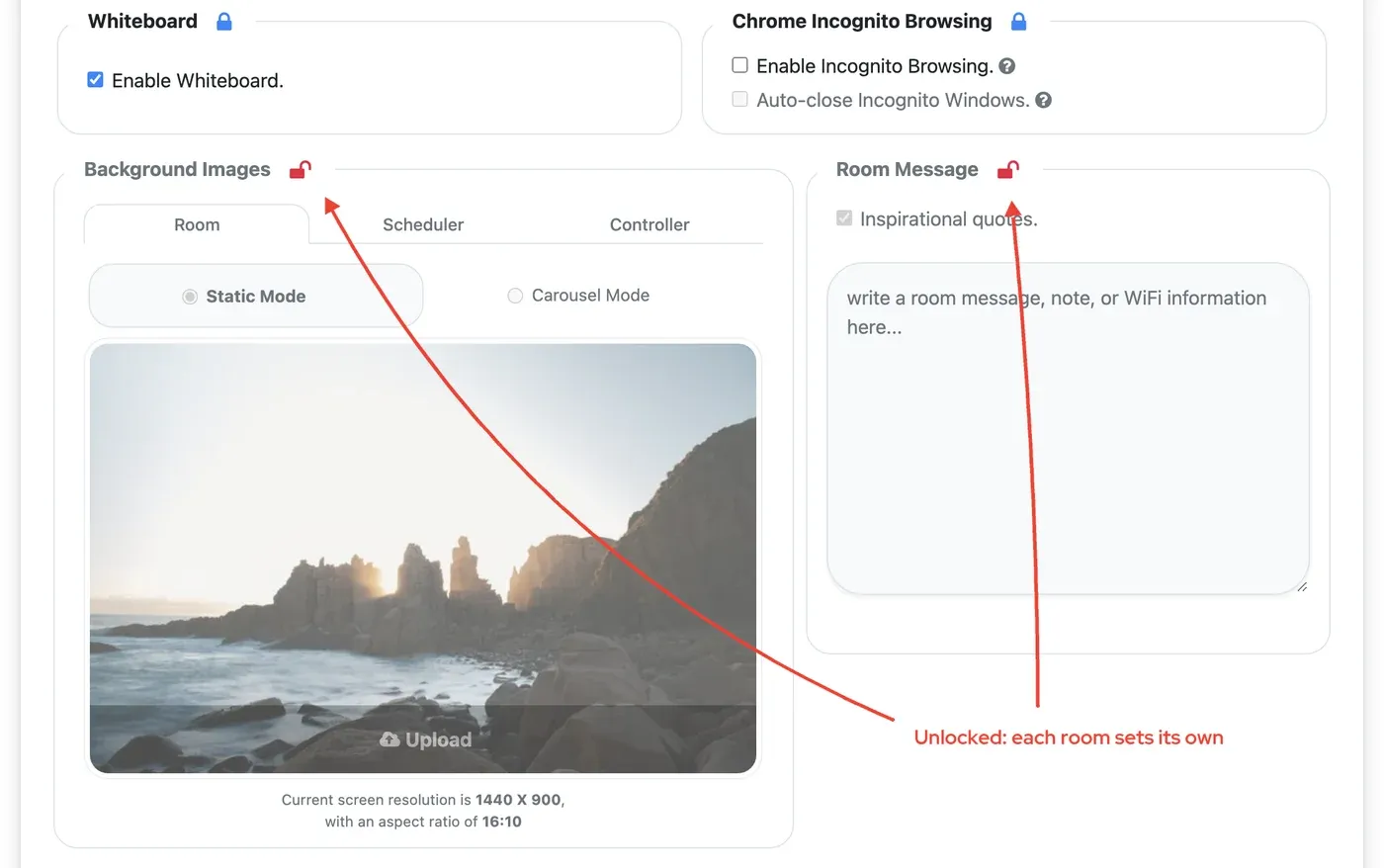
- Unlocked (red open lock): each room, or each account, manages this setting itself.
Click a lock to switch it. For example, lock booking, time zone, security and app options so every room behaves the same, but unlock Background Images and Room Message so each room can show its own picture and its own text, like a welcome note or the Wi-Fi details.
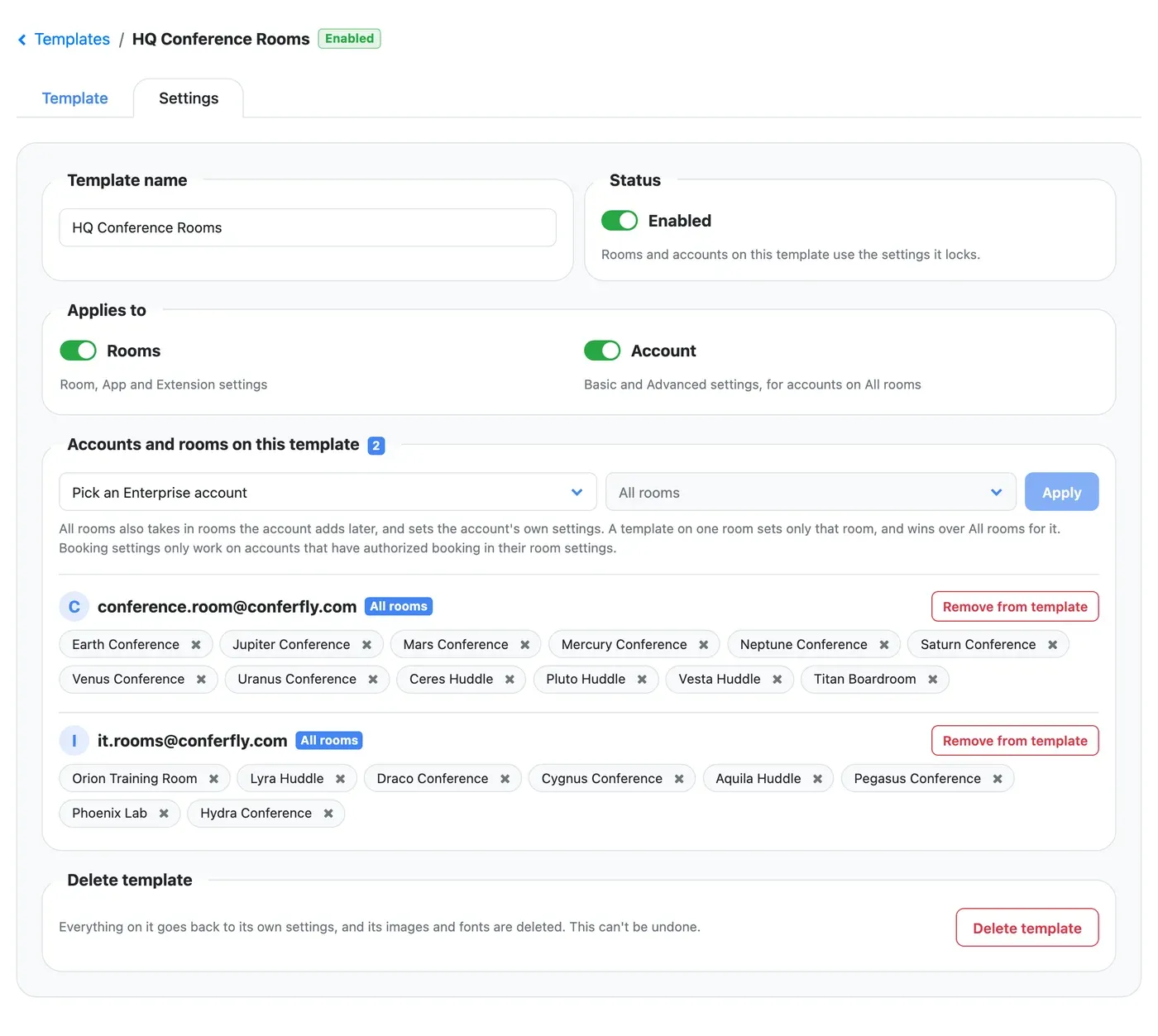
Apply a template to accounts and rooms
- Open the template and go to its Settings tab.
- Under Accounts and rooms on this template, pick an Enterprise account.
- Choose All rooms, or a single room.
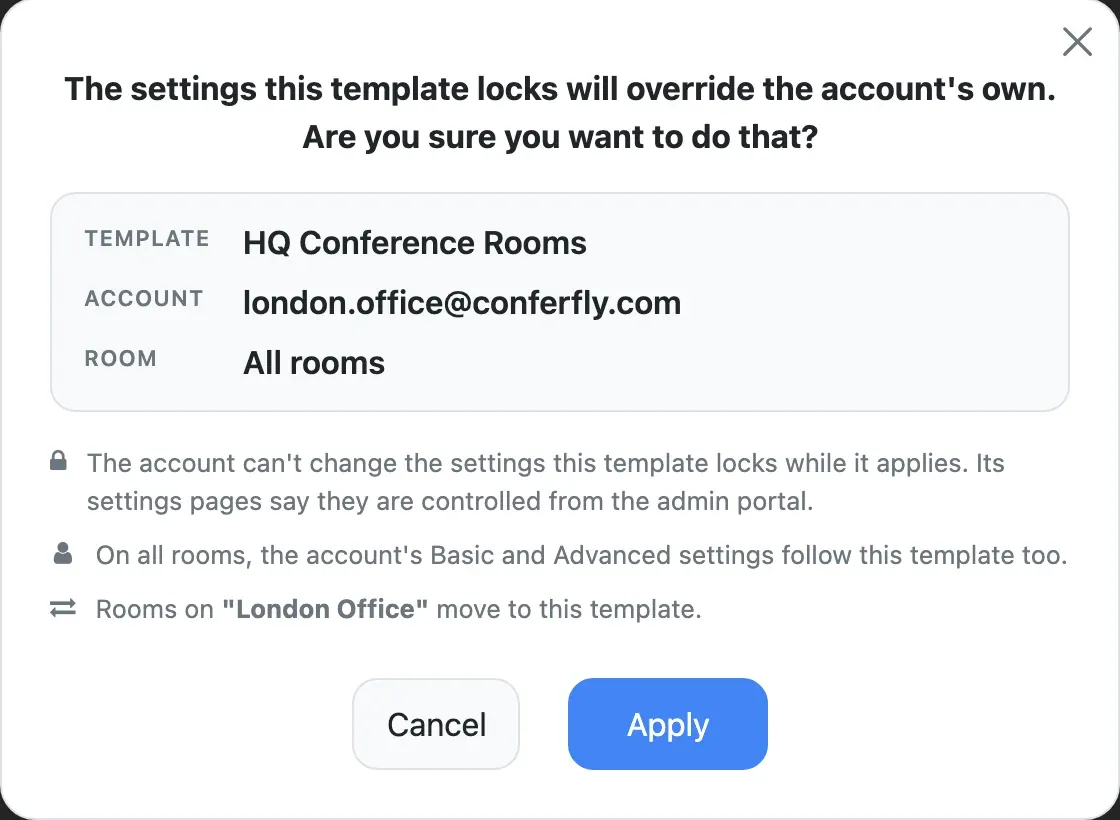
- Click Apply and confirm.
- All rooms also takes in rooms the account adds later, so new rooms are set up the moment they are created. It also applies the template's Account section to the account.
- A template on one room sets only that room, and wins over All rooms for it. Use this for the odd room that needs something different, like a boardroom.
- Rooms already on another template move to this one, and the confirmation tells you so.
- Booking settings start working once booking is authorized in the account's room settings. The portal warns you if it isn't.
Repeat for each account. In a few seconds every room in your organization has the same settings.
What the room sees
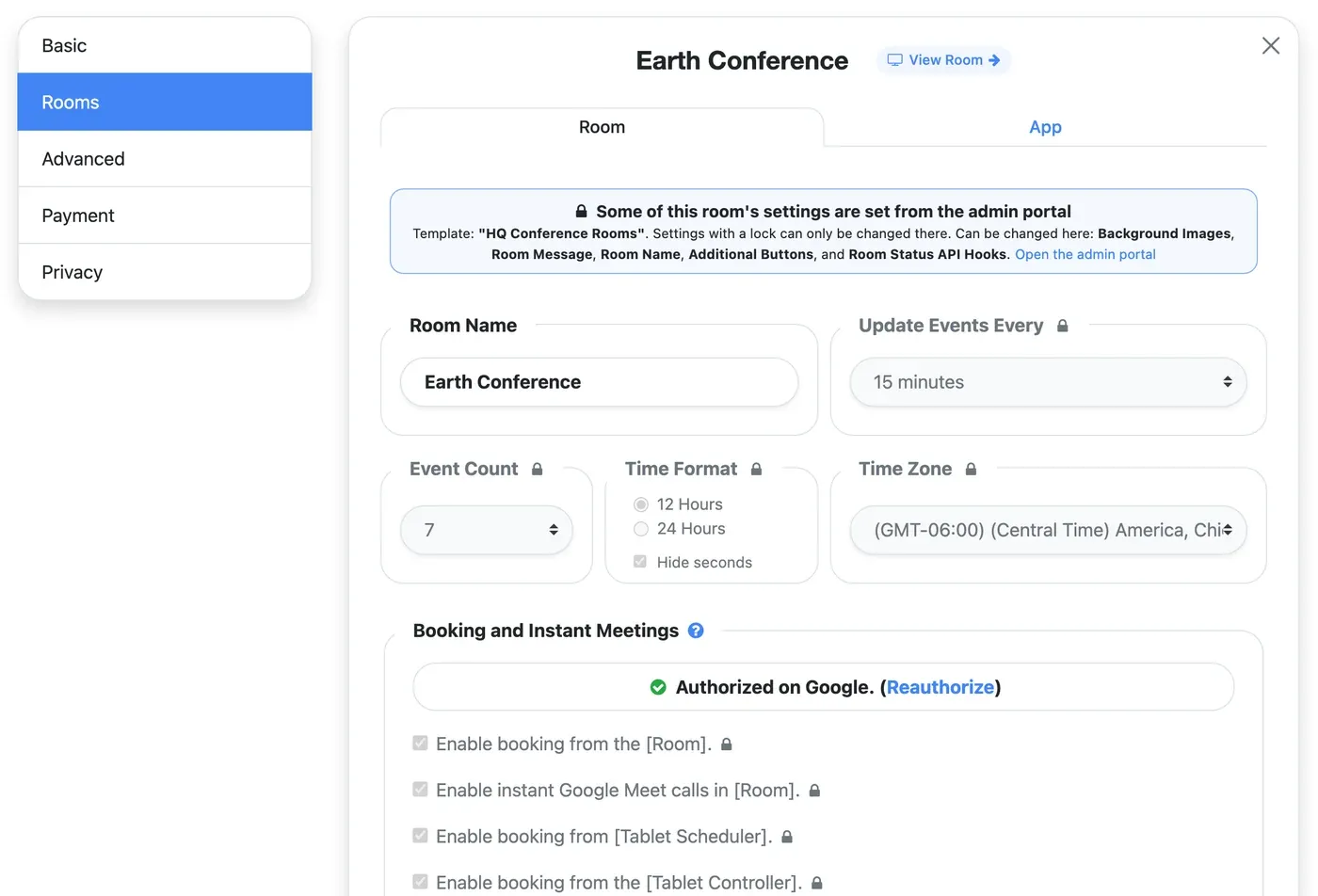
In the account, the room's settings page says Some of this room's settings are set from the admin portal, names the template, and lists what can still be changed there. Locked settings are greyed out with a lock. The account's Basic and Advanced pages do the same for the Account section.
Turn a template off, remove rooms, or delete it
Settings are never copied onto the rooms. A template is applied while the room is loaded, so:
- Disable a template and its rooms and accounts go back to their own settings until you enable it again.
- Remove from template (a whole account, or one room with the ✖ on its chip) and that room is back on its own settings at once.
- Delete template puts everything on it back on its own settings and deletes its images and fonts. This can't be undone.
You can also rename a template and turn its Rooms or Account section on or off on the Settings tab.
Audit Log: Who Changed What
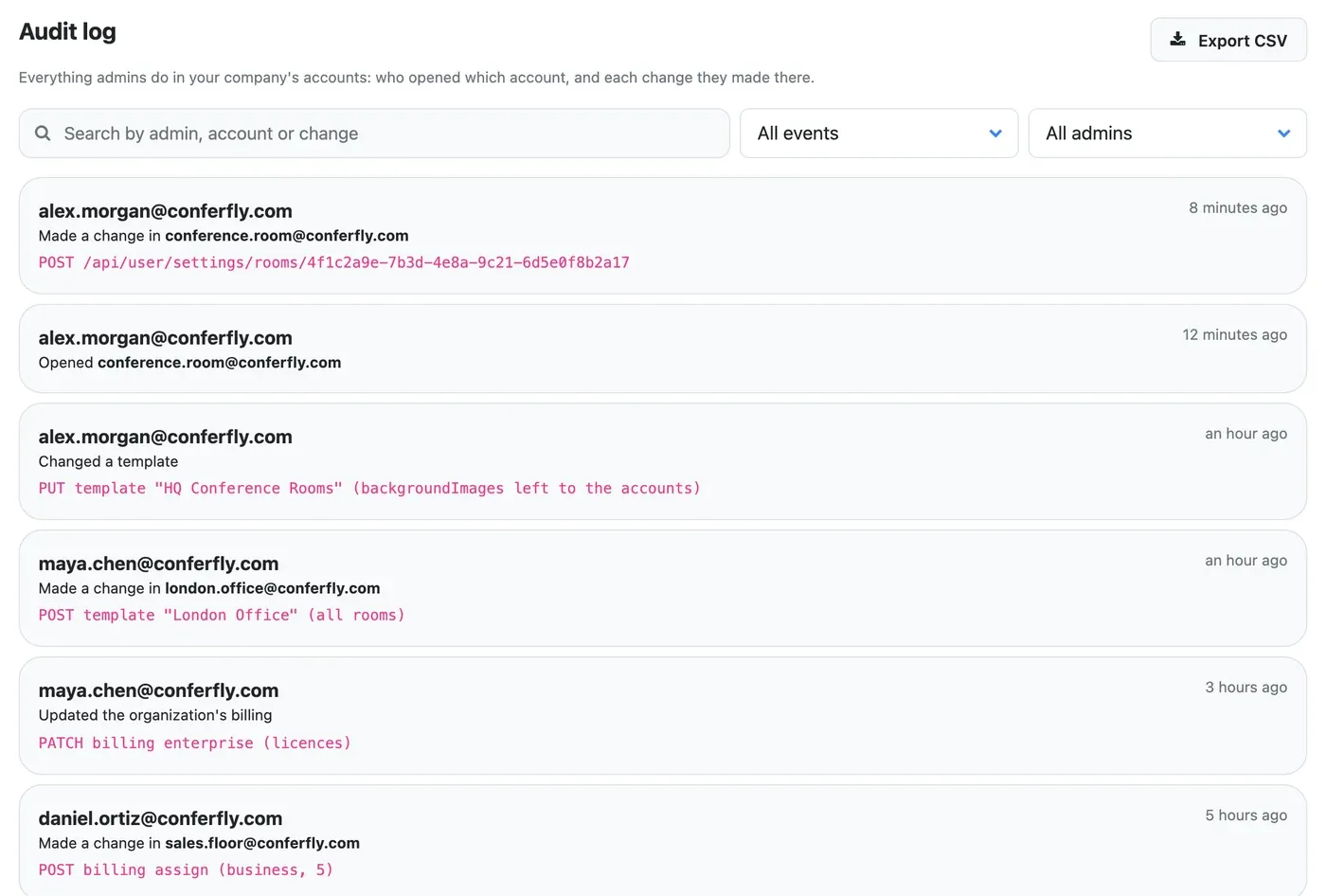
The Audit log tab lists everything admins do in your organization's accounts, newest first:
- who opened which account,
- each change they made there,
- changes to templates and to the organization's billing.
Search by admin, account or change, and filter by event type or by admin. Click Export CSV to download up to the newest 5,000 entries that match your search and filters (times in UTC), for your records or a security review.
Frequently Asked Questions
Do I need a separate Conferfly account to use the portal?
No. You sign in with your Google Workspace or Microsoft 365 admin account. No Conferfly account is created for you.
Which accounts show in the portal?
Every active Conferfly account that signs in with your organization's Google Workspace or Microsoft 365. Personal accounts don't belong to an organization and don't show.
Can several admins use it at the same time?
Yes. Every admin of your organization sees the same portal, and each one's actions are logged under their own name.
Does a template overwrite my rooms' settings?
No. A template is laid over the rooms while it applies. Disable it, remove a room from it or delete it, and the room is back on its own settings.
Is the portal available in other languages?
Yes, in all of Conferfly's languages, with light and dark mode. Use the language and theme buttons at the top right.
Ready to try it? Sign in at admin.conferfly.com with your admin account. For help, contact us at [email protected].