Conferfly Desktop App
Run Conferfly on your room computers: auto-join on every platform, room audio and video, kiosk mode, auto-login and a daily reset, on Windows, macOS and Linux.

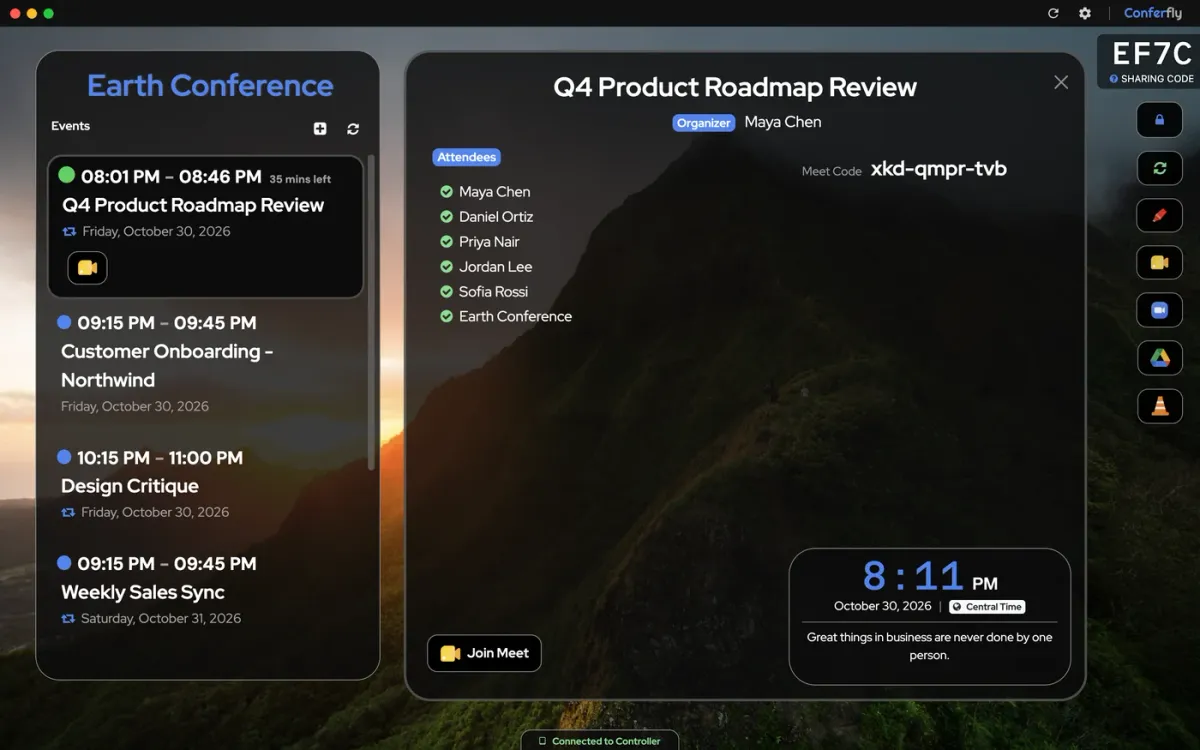
The Conferfly Desktop App runs Conferfly on the computer behind your room display. It's built for rooms with nobody at the keyboard. It joins meetings for you and uses the room's own speaker, microphone and camera. It locks the computer into kiosk mode, signs back in by itself after a restart, and clears the room every night. It works the same on Windows, macOS and Linux.
Download it from download.conferfly.com:
- Windows: the .exe installer, the .msi for Intune or Group Policy, or the Microsoft Store.
- macOS: the .dmg or the Mac App Store.
- Linux: the .deb or the AppImage.
All the options below are in App Settings, which opens from the gear in the app's title bar. It has four sections: Platforms, General, Audio & Video and Advanced.
Auto-Join on Every Platform
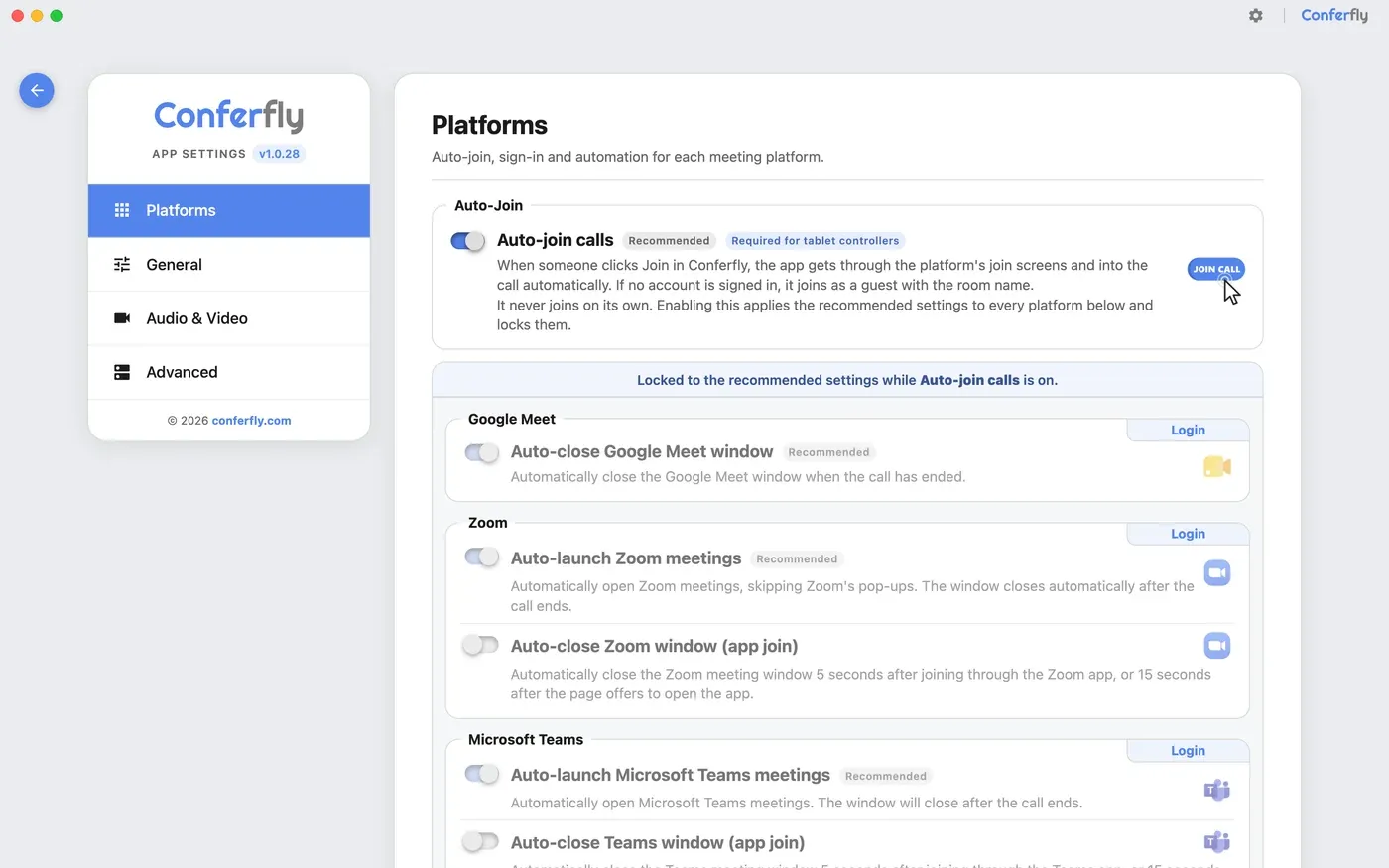
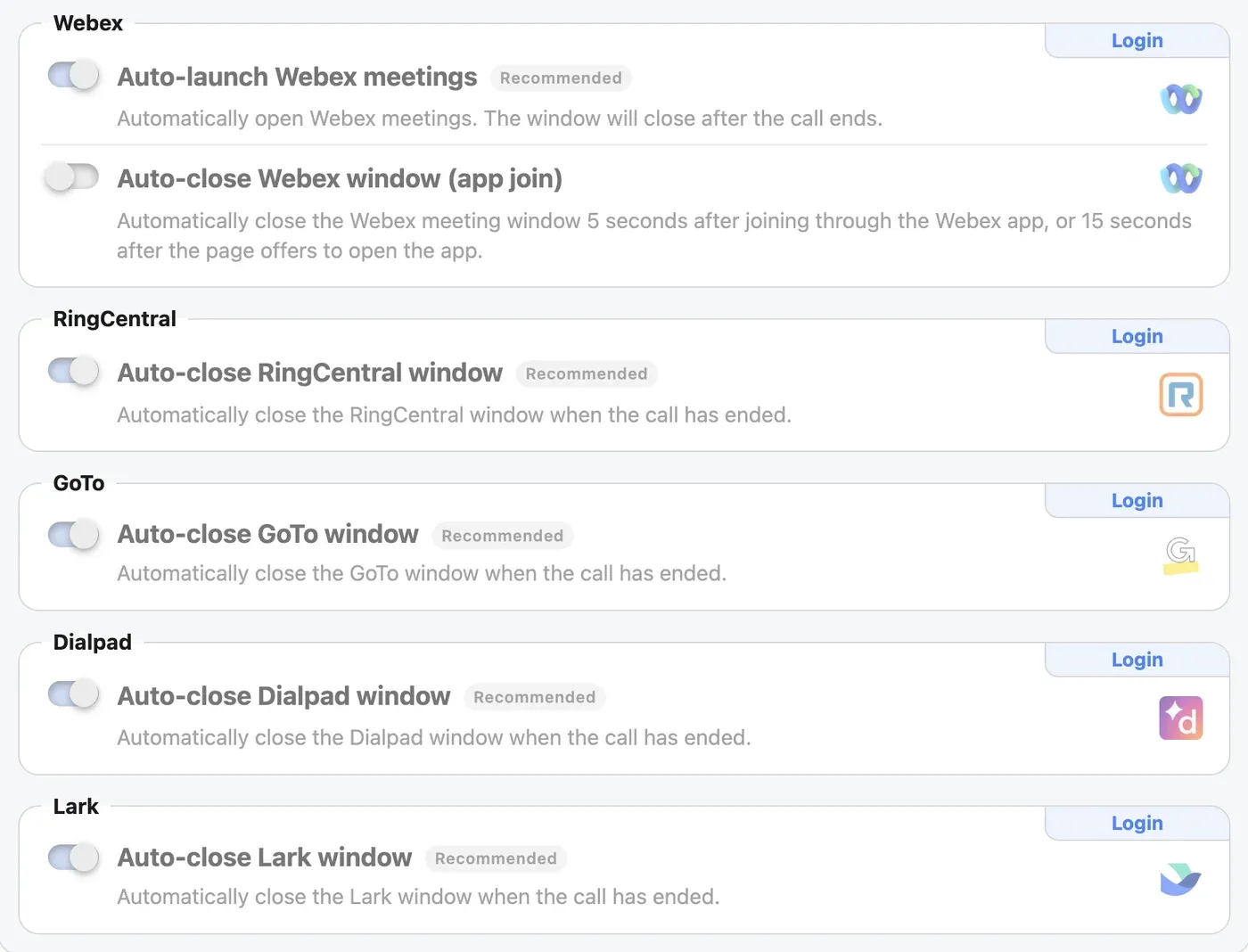
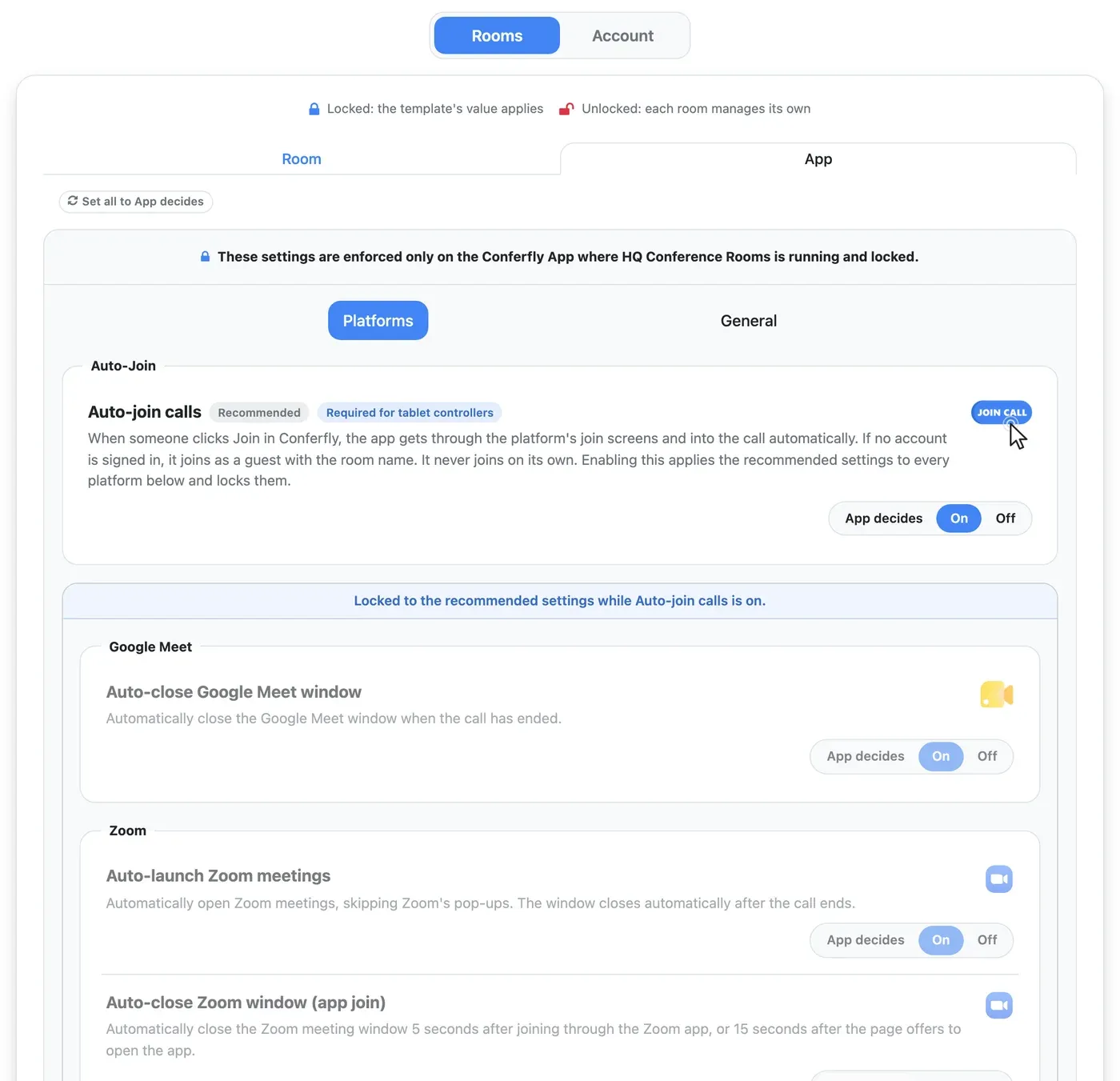
Turn on Auto-join calls. When someone clicks Join on the room screen or on a tablet controller, the app gets through the join screens and into the call. If no platform account is signed in, it joins as a guest under the room's name. When the call ends, it closes the window. It works with Google Meet, Zoom, Microsoft Teams, Webex, RingCentral, GoTo, Dialpad and Lark, and the mute and camera buttons on a controller or external device work in all of them.
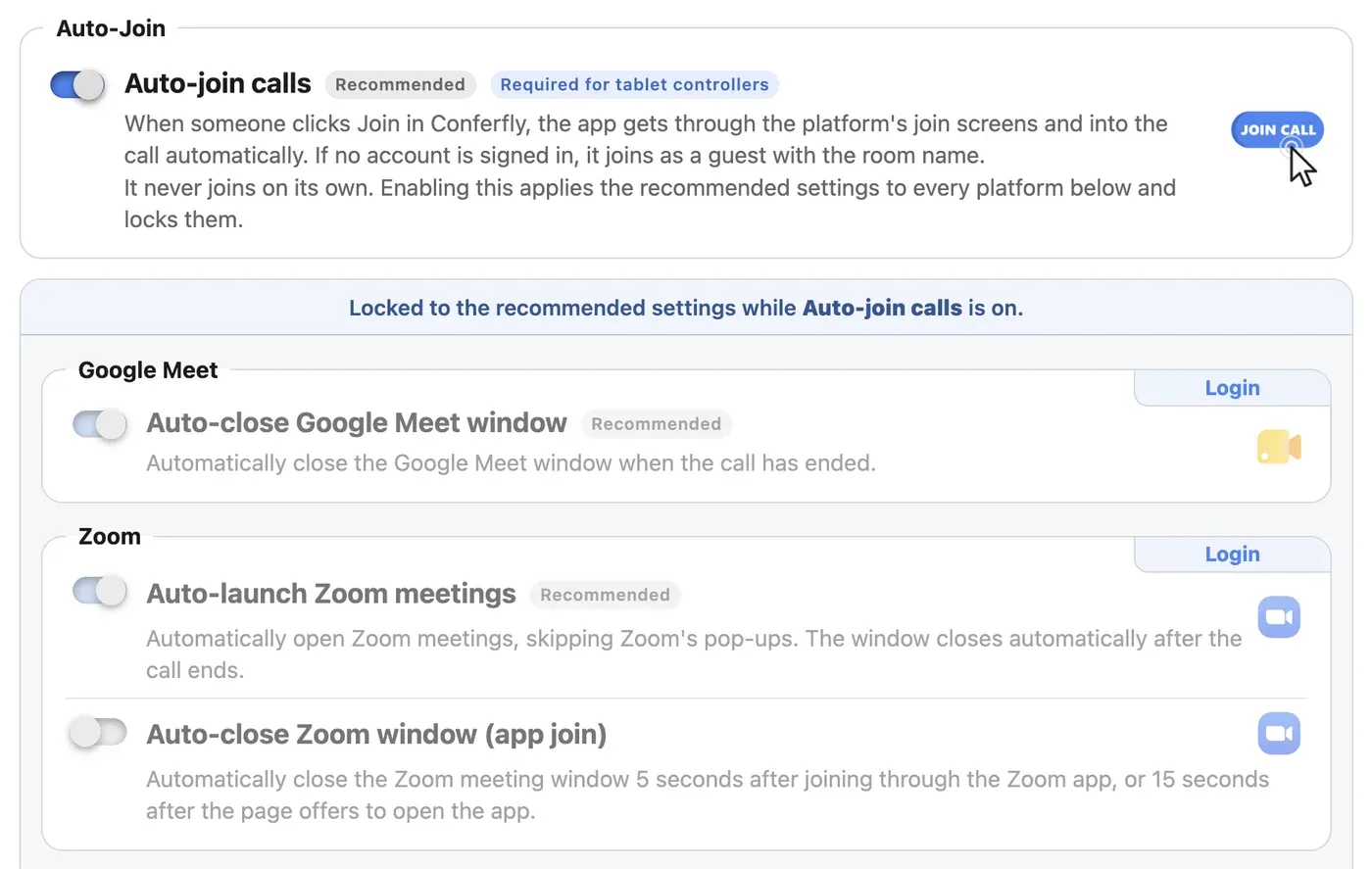
If a room uses the Zoom, Teams or Webex desktop app instead, turn off Auto-join and turn on Auto-close window (app join): the browser window closes by itself once the call opens in that app.
Speaker, Microphone, Camera and External Devices
In Audio & Video, choose the room's microphone, speaker and camera. Every meeting on every platform starts with them, and Test buttons let you check each one.
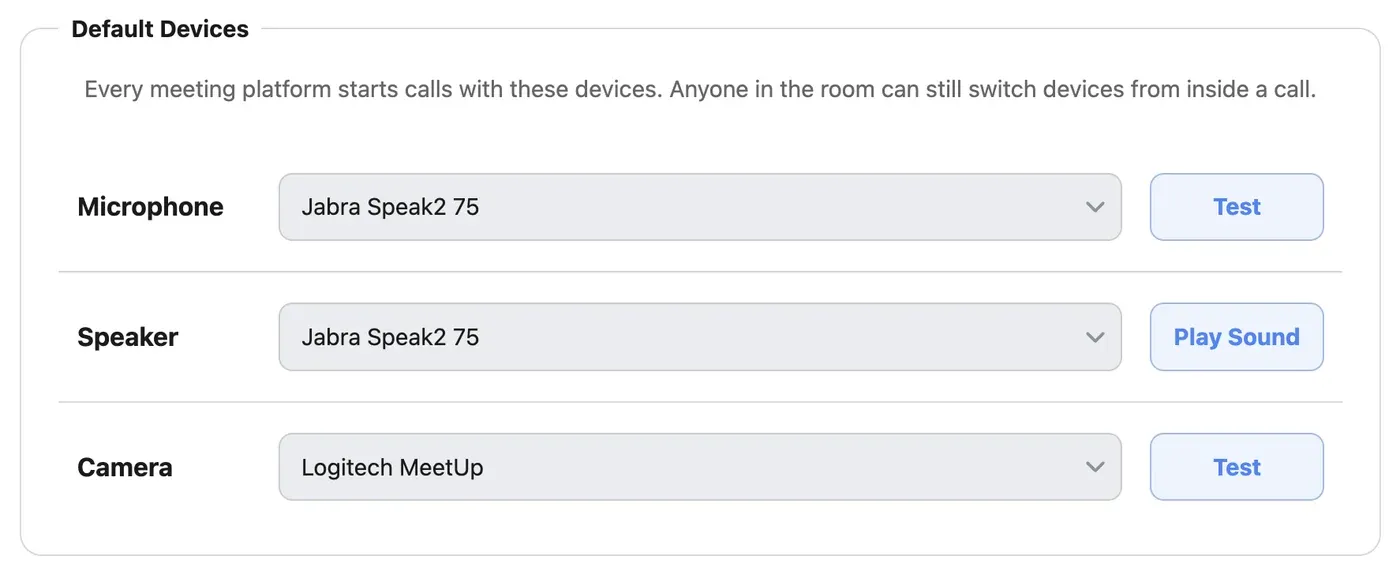
USB speakerphones, headsets, clickers and remotes work with the app natively, with no browser prompt. A speakerphone's mute button stays in step with the call, and you can map device buttons to Conferfly actions (see External Devices).
Notifications
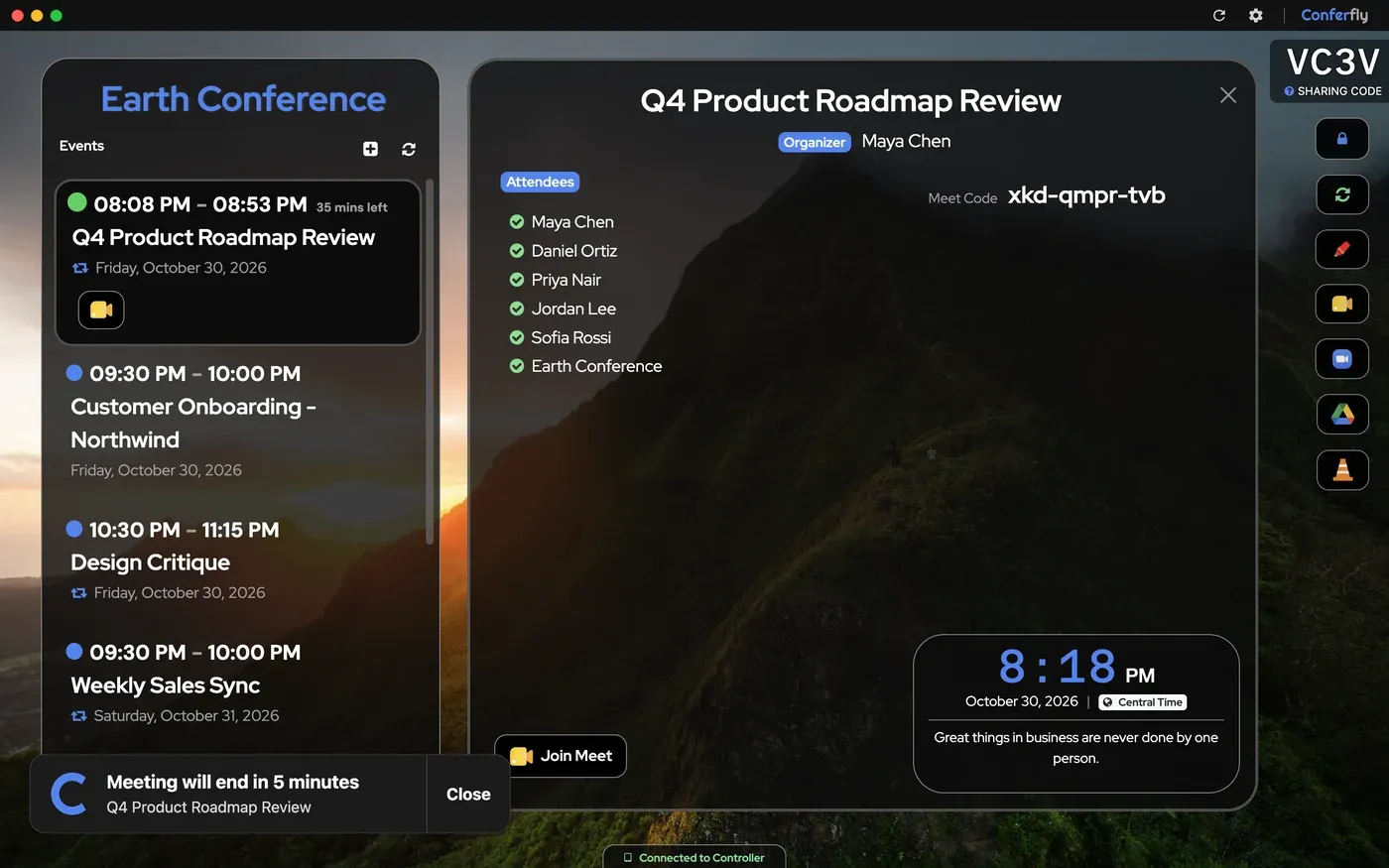
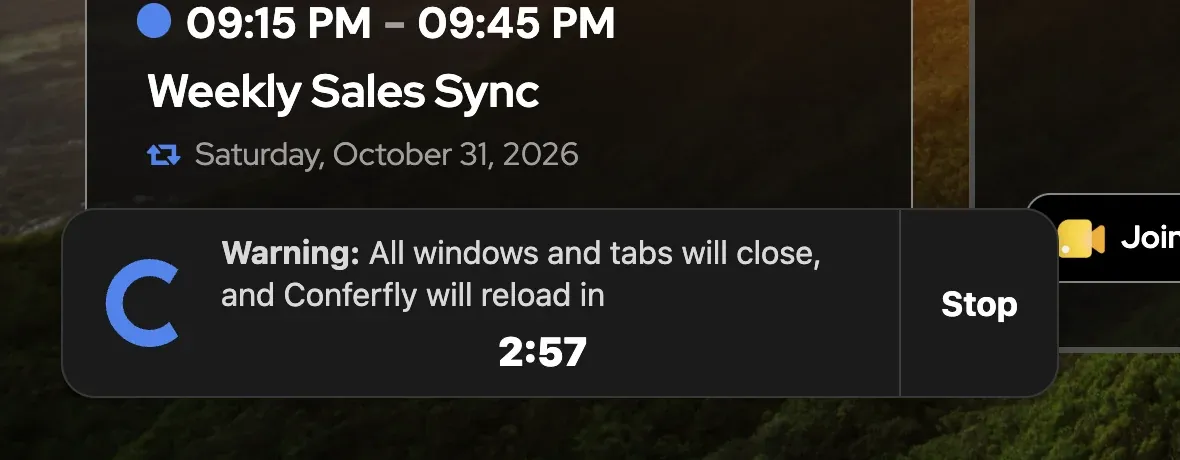
Meeting reminders, such as Active Meeting Now and Meeting will end in 5 minutes, appear as the app's own pop-ups. They show on top of everything, including a running call. So do the countdowns before a meeting window closes, before the daily reset and before an update.
Multiple Displays
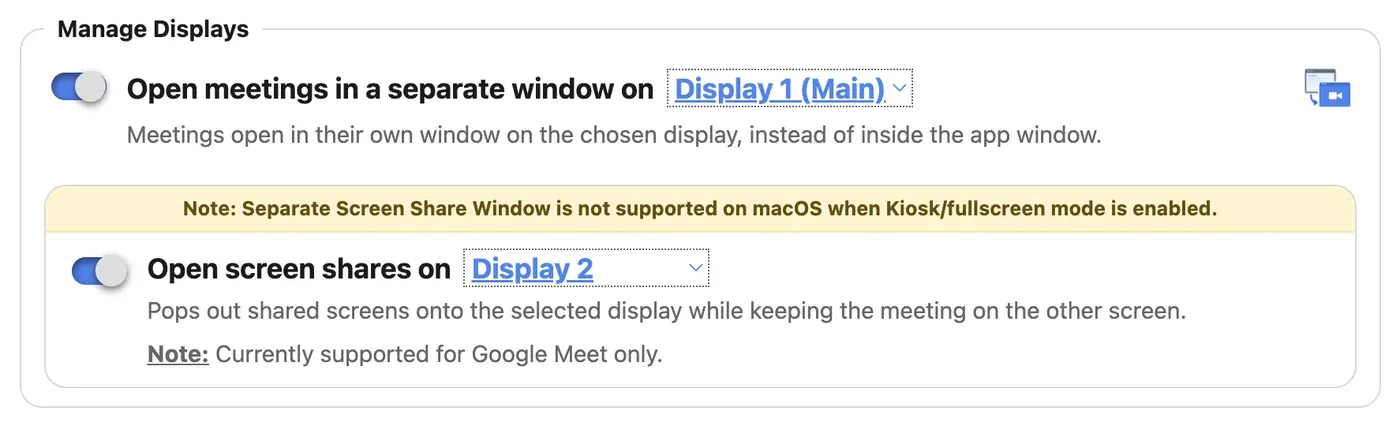
In Manage Displays, open meetings in their own window on the display you choose. You can also put shared screens on a second display while the meeting stays on the first (Google Meet for now).
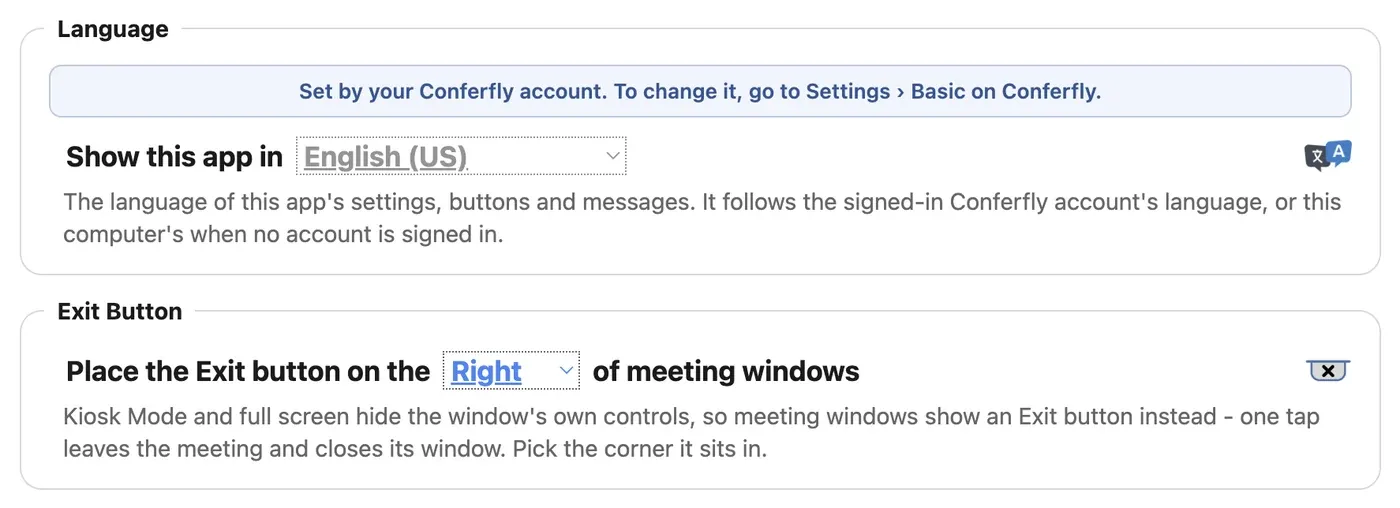
In kiosk and full screen, meeting windows show an Exit button that leaves the meeting and closes its window in one tap. Choose which side it sits on. The app's language follows the Conferfly account, in 17 languages.
Websites in the Room
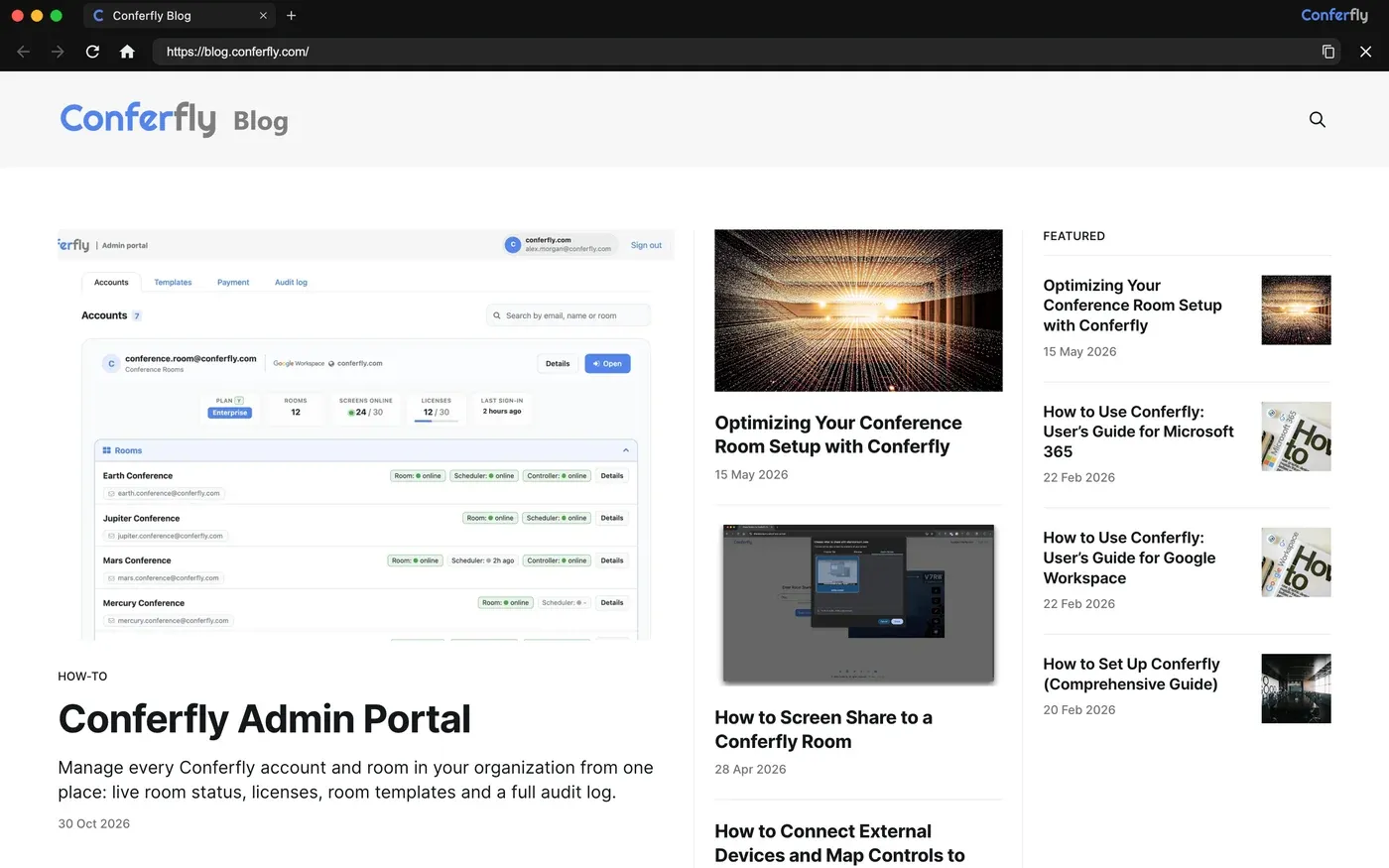
Links opened from a room, such as a custom button, open in a window with tabs, Back, Forward, a Home button that returns to Conferfly, the address bar and Close. Rooms can also open incognito windows, where nothing is saved.
True Kiosk Mode
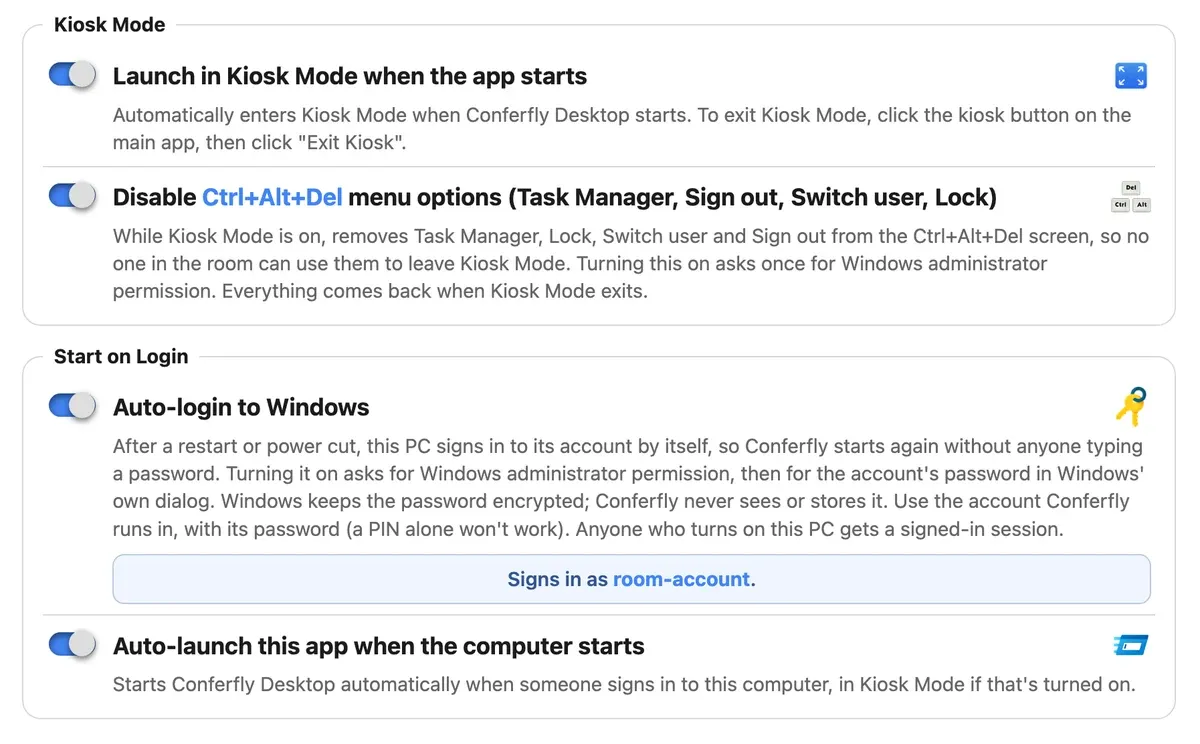
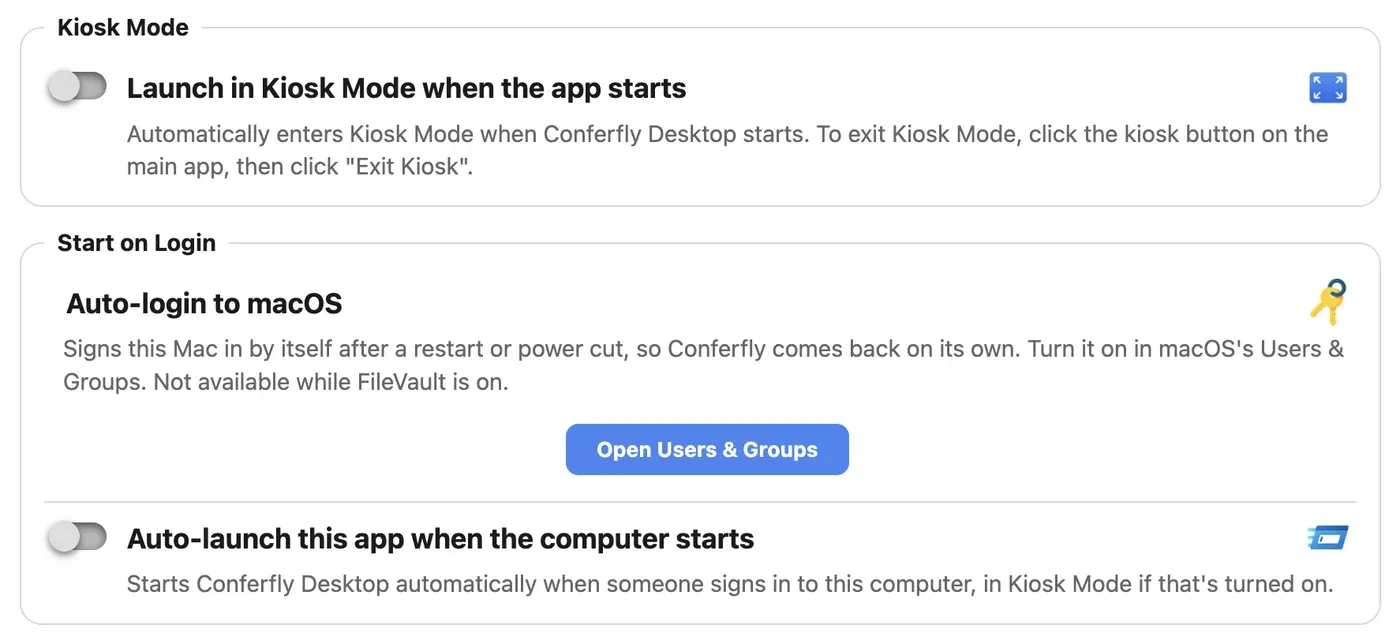
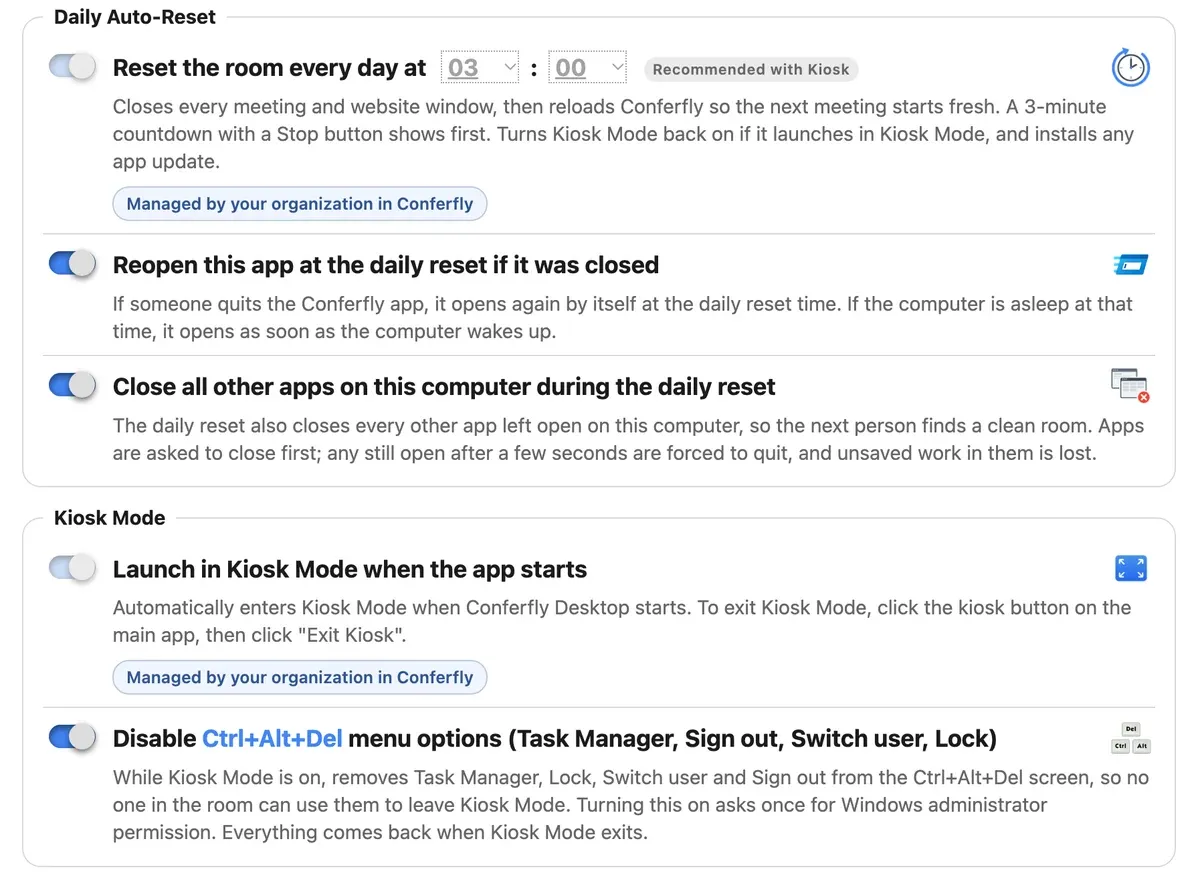
Click Kiosk in Conferfly, or turn on Launch in Kiosk Mode when the app starts. This is a true kiosk, not just full screen: the keyboard shortcuts and system menus that could leave Conferfly are blocked at the system level. The app never leaves kiosk mode on its own, and the only way out is Kiosk → Exit Kiosk in Conferfly.
- Windows: blocks the Windows key, Alt+Tab, Alt+Esc, Alt+F4, Ctrl+Esc and Ctrl+Shift+Esc (Task Manager), and hides the taskbar and Start button on every monitor.
- Linux (GNOME): turns off GNOME's shortcuts, the top bar, the dock, the hot corner and the overview gestures.
- macOS: full screen with the Dock and menu bar hidden and app switching blocked.
Disable Ctrl+Alt+Del menu options (Windows): Ctrl+Alt+Del always opens Windows' security screen, so no app can block the keys themselves. With this option on, that screen no longer offers Task Manager, Lock, Switch user or Sign out while kiosk is on, so nobody in the room can use it to leave Conferfly. Approve the administrator prompt once when you turn it on; everything comes back when kiosk mode exits.
Manage other apps in kiosk
On Windows and Linux, kiosk mode shows a dock in place of the taskbar when more than one window is open. It lists Conferfly and every other open app, such as the Zoom or Teams desktop app. Tap one to switch to it, or × to close it.

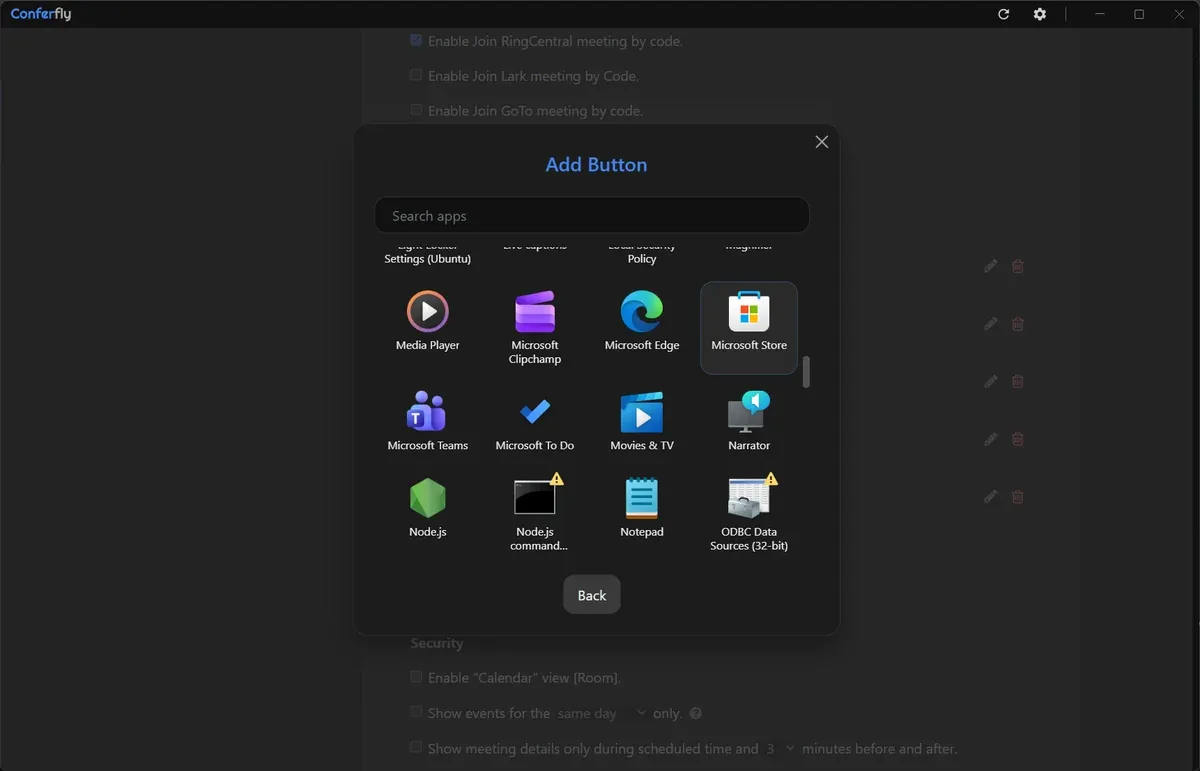
A room button can also open an app installed on the room computer. Apps that could leave kiosk mode, such as terminals and system settings, are marked with a warning.
Automation
- Auto-login: after a restart or power cut, the computer signs in by itself. On Windows, Windows keeps the password encrypted and Conferfly never sees it; on Linux no password is stored. On macOS it's turned on in Users & Groups.
- Auto-launch Conferfly when the computer starts, in kiosk mode if that's on.
- Keep computer awake, overnight updates, and automatic recovery if a page freezes or crashes.
Daily Auto-Reset
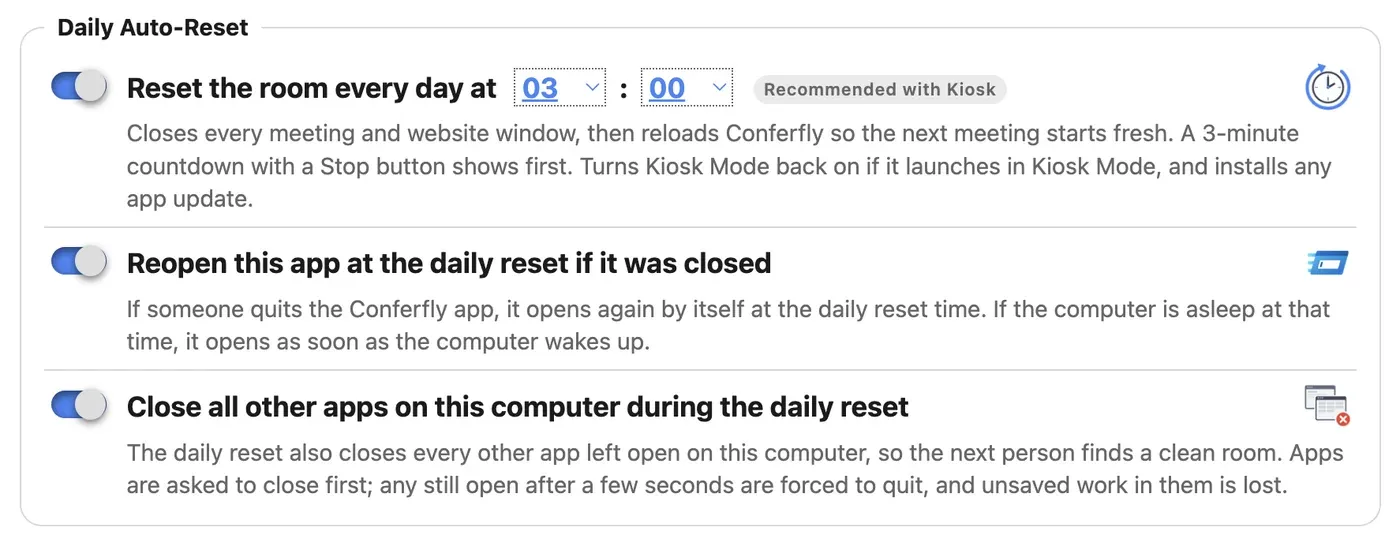
At a time you choose, the app closes every meeting and website window and reloads Conferfly, so each day starts clean. It turns kiosk mode back on if the room launches in kiosk mode, and installs any update. A 3-minute countdown with a Stop button shows first, in case the room is in use.
- Close all other apps on this computer: anything left open, such as the Zoom or Teams app, a browser or a document, is asked to close, and anything still open after a few seconds is forced to quit. Works on Windows, Linux and macOS (not the Mac App Store version).
- Reopen this app if it was closed: if someone quit Conferfly, it starts again by itself at the reset time, or as soon as the computer wakes up if it was asleep. Not in the Mac App Store or Microsoft Store versions.
Version, updates and computer details
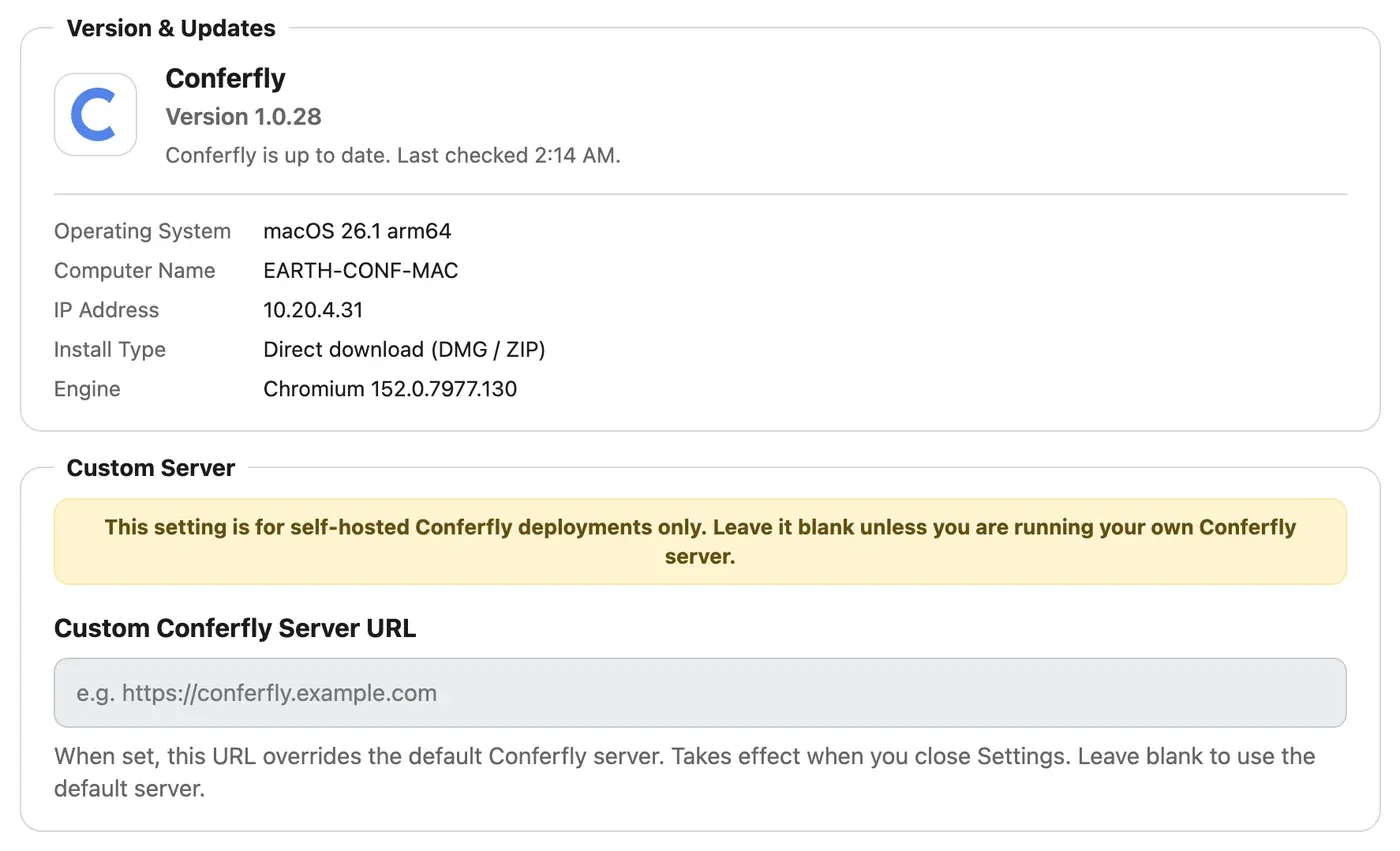
Advanced shows the app's version, a Check for Updates button, and the computer's OS, name, IP address and install type. The .msi never updates itself, so IT stays in control of the version. A Custom Server field is there for self-hosted Conferfly, and Reset App & Clear All Data starts the app fresh.
Manage Every Room From One Place
You don't have to visit each room computer:
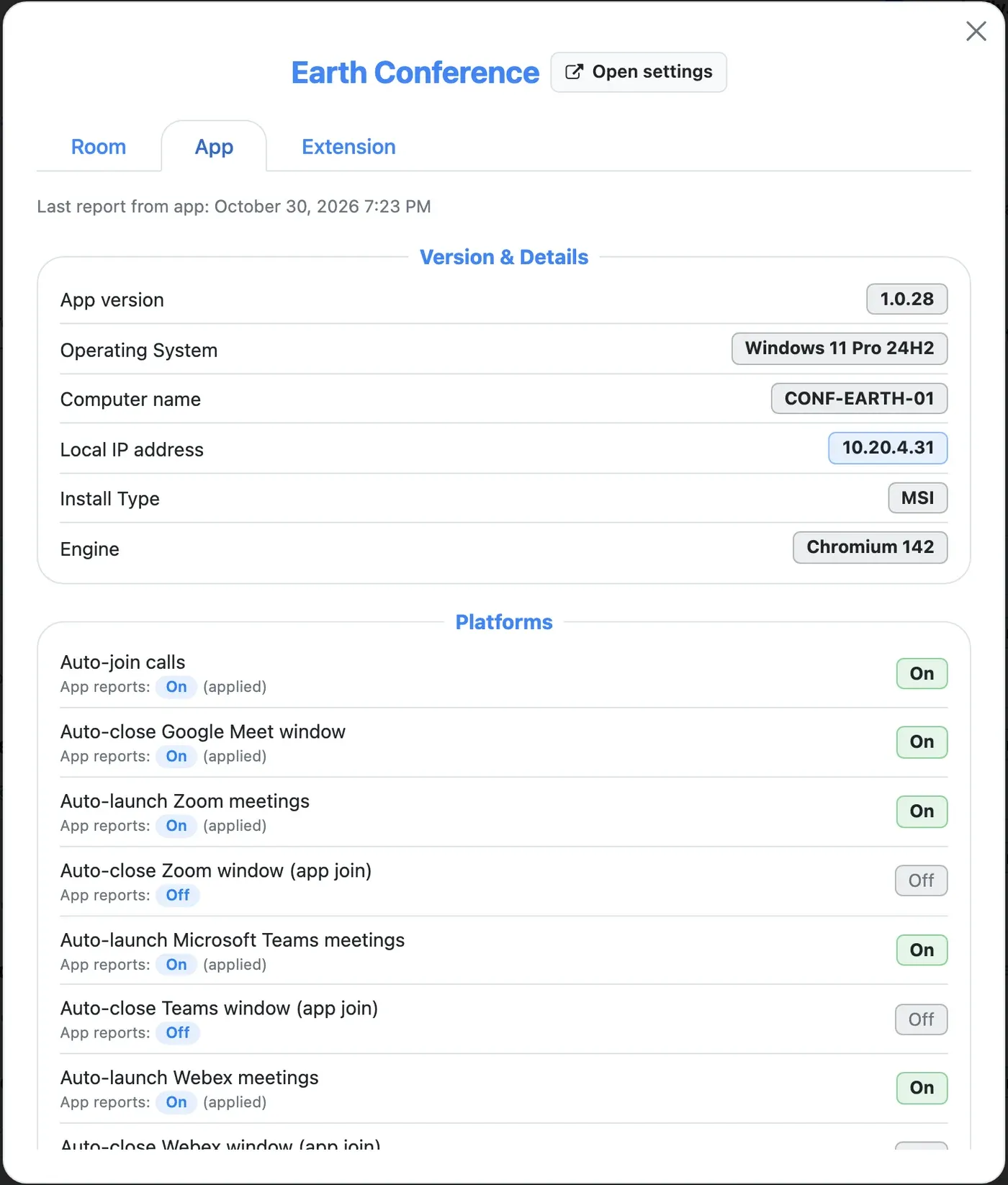
- conferfly.com: in Settings → Rooms, open a room's App tab and set each option. The room computer applies it, reports back, and shows Managed by your organization in Conferfly.
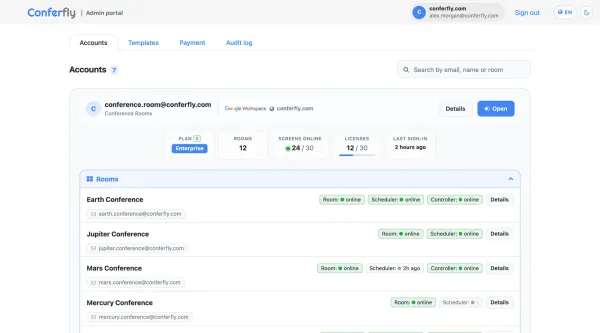
- Admin Portal: on Enterprise, set the app's options once in a room template and apply them to all your rooms. The portal also shows each room computer's app version, OS, computer name and IP address.
- IT policy: preset or lock settings through the Windows registry (Group Policy or Intune), a macOS managed profile or
/etc/conferfly/policy.jsonon Linux.
Ready to set up your rooms? Download the app at download.conferfly.com. For help, contact us at [email protected].