Optimizing Your Conference Room Setup with Conferfly


For a seamless and reliable conference room experience in kiosk mode with Conferfly, follow these steps: Start with the Conferfly app. On Windows, Mac and Linux, the Conferfly app handles most of this for you. In Settings > App Settings, turn on Kiosk Mode, Start on Login, Keep PC Awake and Daily Auto-Reset. Meetings open in its built-in browser, so no Chrome setup is needed.
Windows
- PC Auto Logon for Windows PC:
Configure your conference room PC to automatically log in upon startup. Refer to this guide for instructions on setting up auto-logon. - Automatically Start Conferfly in Kiosk Mode on Boot:
Turn on Kiosk Mode and Start on Login in the Conferfly app, so Conferfly opens full screen as soon as the PC logs in. Follow this guide to learn how. - Disable Keys That Could Exit Kiosk Mode:
Only needed if you run Conferfly in Chrome/Edge. The Conferfly app blocks the keys that could exit kiosk mode on its own, so you can skip this step. In Chrome/Edge, disable certain keys to prevent accidental or intentional exits from kiosk mode, using a Microsoft utility called PowerToys, available on the Microsoft Store.
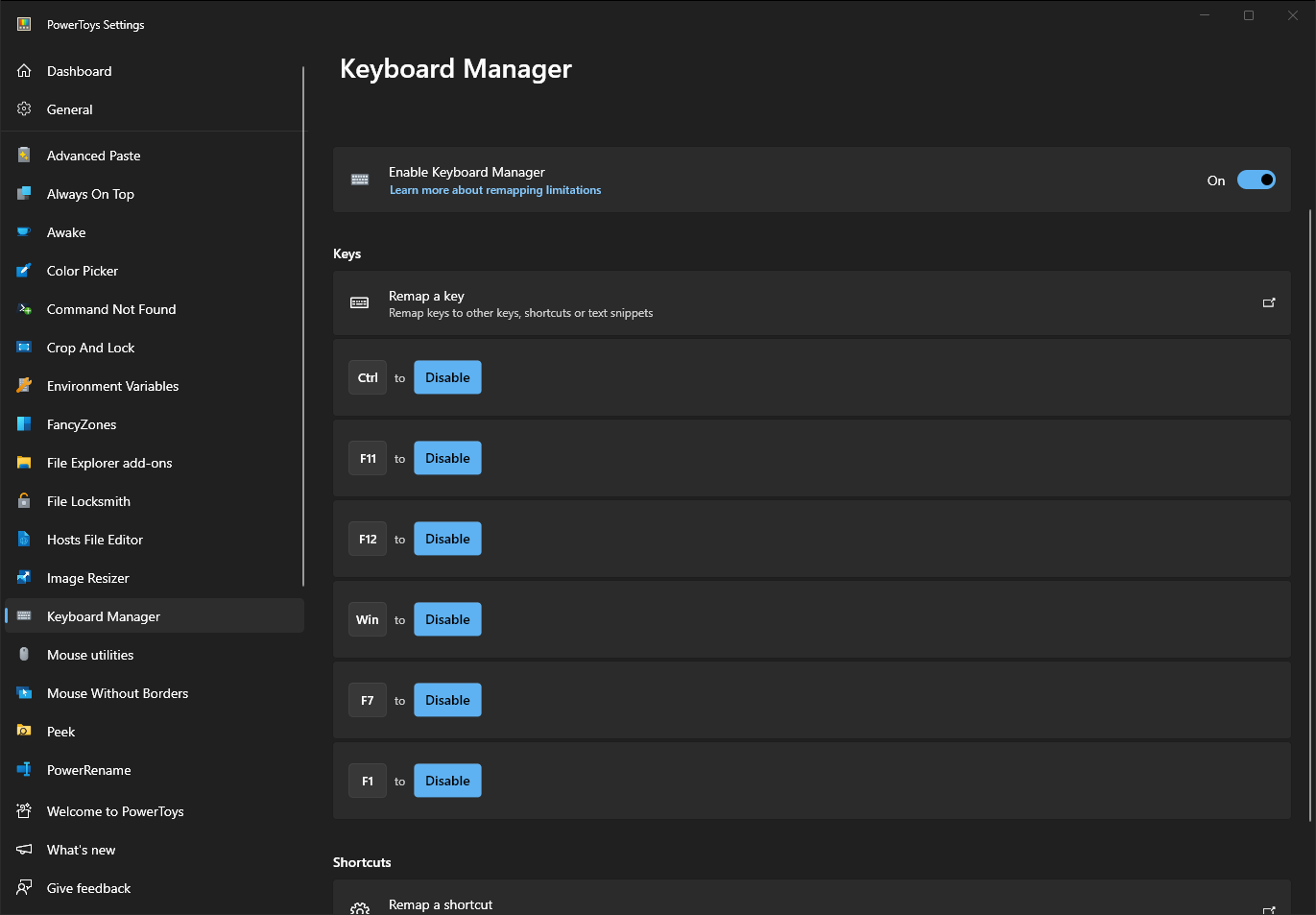
- Install PowerToys and launch the application.
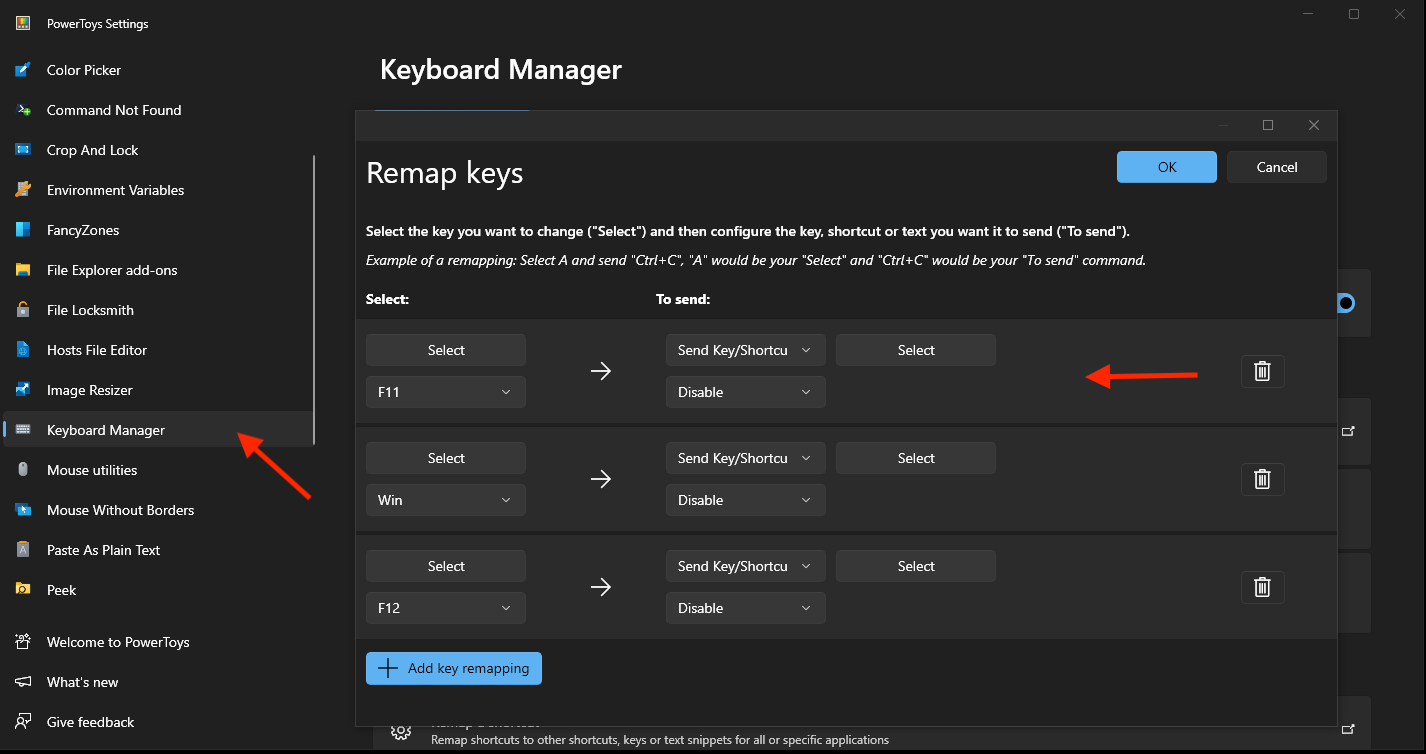
- Navigate to "Keyboard Manager" from the left list.
- Select "Remap a Key" and disable the keysF1,F7,F11,F12,Ctrl, andWinas illustrated below.
- Auto Hide Windows Taskbar:
It's recommended to hide the taskbar, especially when using Conferfly's Incognito browsing option.- Press and hold (or right-click) any empty space on the taskbar.
- Select "Taskbar settings" and choose "Taskbar behaviors" on Windows 11 or "Taskbar" for Windows 10.
- Enable the option to Automatically hide the taskbar.
Mac
- Automatically Start Conferfly in Kiosk Mode at Boot on macOS:
Turn on Kiosk Mode and Start on Login in the Conferfly app, so Conferfly opens full screen as soon as the Mac starts. Follow this guide to learn how.
Linux
- Launch Conferfly in Kiosk Mode on Startup:
Set up Conferfly to automatically start in kiosk mode when using a Linux device. Follow this guide to learn how.
Chrome OS
- Launch Conferfly in Kiosk Mode on Startup:
Set up Conferfly to automatically start in kiosk mode when Chrome OS boots. Follow this guide to learn how.
By implementing these steps along with the Conferfly app's recommended App Settings (or the Conferfly extension's settings, if you use Chrome), you can establish a highly reliable conference room setup in a kiosk, requiring minimal to no support from your IT team.
Note: The only way to exit kiosk mode is by unlocking the room if it's locked. Then, tap the Kiosk button in the header and select "Exit Kiosk".
If you want to reload/refresh Conferfly app in Kiosk mode, hold the refresh button for 3 seconds.